Workspaces, Instrument Links and Multi-Monitor Layouts in NinjaTrader 8
One chart turns into a desk quickly: an execution chart, a context chart, Time and Sales, a second monitor. How NinjaTrader 8 keeps those windows on the same instrument, how workspaces save and switch whole layouts, what tabs are good for, and what to do when a monitor goes missing.
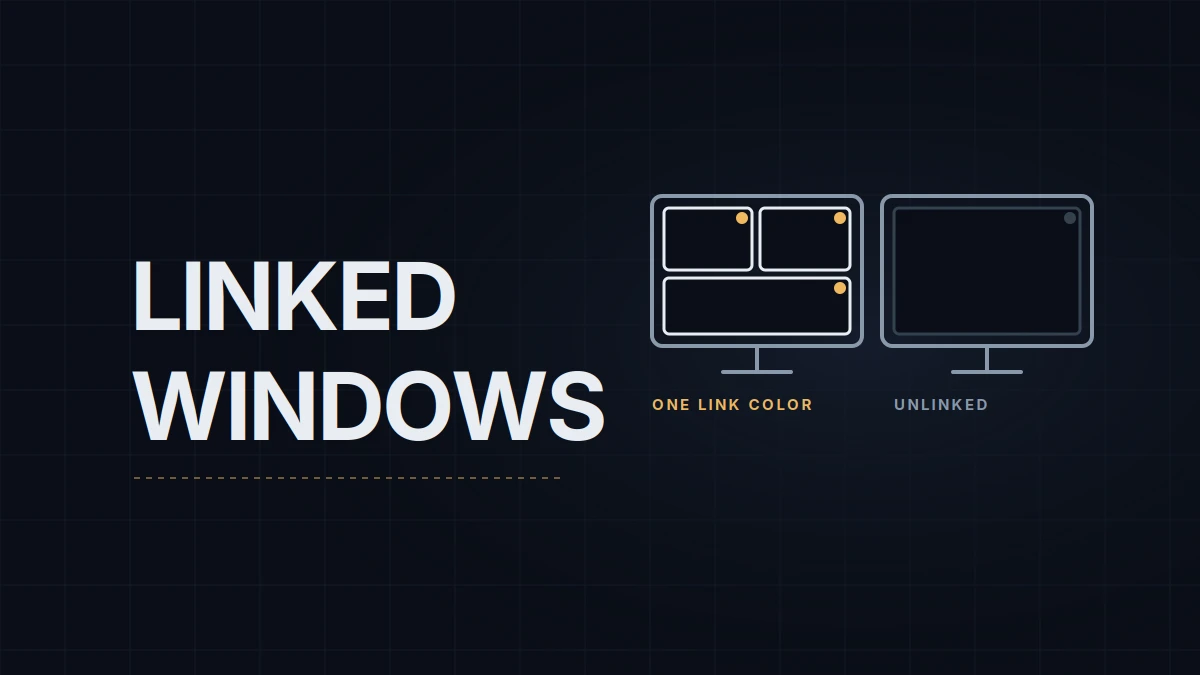
A second monitor turns NinjaTrader 8 from one chart into a desk: an execution chart, a slower chart for context, Time and Sales, maybe a Market Analyzer. It also multiplies the windows that have to agree on the instrument and come back in the same place tomorrow. NinjaTrader instrument linking keeps the windows on one symbol, tabs keep related charts in one window, and workspaces save the whole arrangement. A single chart's setup, its data series, its template and a first workspace, is in chart setup; this picks up from there.
Instrument linking by color
Charts, order entry windows, Time and Sales, Alerts, News, FX Board and Market Analyzer windows all have a link button in the top right corner. Give several windows the same link color and changing the instrument in one changes it in all of them. Charts add a second kind, the interval link: charts that share it change their interval together. Link All makes a window follow every color at once.
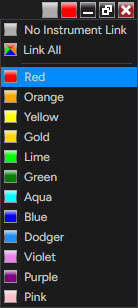
Linking is also how a chart ends up on the wrong instrument. Selecting a different symbol in any linked window, a row in a Market Analyzer included, moves every window on that color, the execution chart and the order entry window with it. So the colors are worth planning:
- One color per instrument you trade. The NQ execution chart, the NQ context chart and the order entry window share a color; an ES chart kept for comparison gets its own, so typing ES into it never touches the NQ windows.
- Interval links only where the intervals should match. Two instruments side by side on the same bar type are a good pair. An execution chart and a context chart, which are on different intervals on purpose, are not.
A Market Analyzer that scans ten symbols is safer on a color of its own, or on none, so that it can't drag the execution chart through all ten.
Tabs
Tabs put several charts in one window. The + tab adds one; right-clicking a tab offers Rename, Duplicate In New Tab and Move To New Window, and a tab can be dragged into a new position. Tab names accept variables such as @INSTRUMENT and @PERIOD, which fill in automatically, so a tab named that way always says what it shows.
Tabs trade screen space for clicks. A chart behind a tab is a chart you look at only when you click it, which suits instruments you check once an hour. The instrument you trade belongs in a window of its own.
Workspaces
A workspace saves the whole desk: every open window with its contents, size and position. The Workspaces menu in the Control Center creates one (new), switches to another (click its name), saves (save, save as), closes or deletes (close, remove), and moves them between machines (import, export); the menu prints these commands in lowercase. Several workspaces can be open at the same time. Shift+F3 cycles to the next one, the active workspace is marked with a filled green rectangle in the menu, and when NinjaTrader shuts down it offers to save changes in every open workspace.
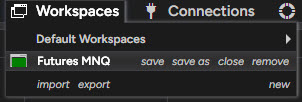
There are two common ways to use them. One workspace per job: a preparation workspace with the higher-timeframe charts used to mark levels, a trading workspace with only the execution and context charts, a review workspace for Market Replay, and Shift+F3 to swap the whole screen between them. Or a single workspace kept deliberately small, which is where many people who trade one instrument end up. Whichever it is, export is the backup; it has been in the Workspaces menu since version 8.1.6. NinjaTrader keeps workspaces in the workspaces folder under Documents\NinjaTrader 8 and writes exported files to Documents\NinjaTrader 8 Backup. Copied to another drive, an exported file saves rebuilding the desk from memory after a reinstall or on a new PC.
Two or three monitors
Windows stay on the monitor they were placed on, and a workspace reopens them there. What moves them is Windows itself. According to NinjaTrader support, a monitor that is switched off or asleep keeps its windows, while a monitor that Windows sees as unplugged has its windows moved to a screen that's still connected. The advice in the same thread is to let monitors sleep rather than unplugging them, and to close workspaces you aren't using before turning a monitor off. The second part matters more: on some monitors and graphics cards sleep itself looks like an unplug to Windows, and users in that thread saw windows in background workspaces move anyway.
The opposite problem is a window that opens somewhere you can't see it, usually after a monitor was removed or the resolution changed. Windows' own shortcuts bring it back: select the window from the taskbar so it's active, then press Windows+Left arrow or Windows+Right arrow until it snaps onto a visible screen. If that fails, press Windows+Shift+Left arrow or Windows+Shift+Right arrow, which moves the active window to the next monitor. A window with a taskbar button of its own can also be moved by hand: Shift+right-click the button, choose Move, press an arrow key once and move the mouse; the window follows the pointer until you click. When several NinjaTrader windows are grouped under one icon, Shift+right-click opens a menu for the whole group instead.
A workspace and a chart template do different jobs. The workspace brings the desk back as it was saved, each window with its contents. A template carries one chart's setup to a new chart: chart properties, panel properties and indicator settings (right-click the chart, Templates, Save As), but not drawings, which are specific to the chart's data series. It's what makes a chart added next month look like the ones already on the desk.
My own layout is small: two charts on one link color, Range 30 bars for entries and a tick chart for context, both close to bare, with the levels drawn and little else, and Bookmap running outside NinjaTrader. It fits in one workspace.
Educational content, not investment advice. Futures trading involves substantial risk of loss. Examples are for illustration only. Read the full Risk Disclosure.