Economic Calendar on the NinjaTrader Chart: Setting Up WotT Event Monitor
An economic calendar in a browser tab is one more window to check. WotT Event Monitor draws this week's USD releases and Nasdaq earnings on the NinjaTrader 8 chart: installing it, the settings that matter, three setups for three kinds of trader, and what it deliberately doesn't do.
An economic calendar in a browser tab is one more window to check, and it tends to be the one nobody checks at 8:29 AM ET. WotT Event Monitor puts an economic calendar on the NinjaTrader chart instead: this week's US dollar releases in time order, a countdown to the next high-impact one, and the Nasdaq earnings that move NQ, in a small panel in a corner of the chart. It's a free indicator from this site, on the tool page. Which releases deserve the attention is covered in the economic releases post; this one is about getting them onto the screen. If NinjaTrader 8 itself is new, chart setup comes first.
Installing it
Download the zip from the tool page, then in NinjaTrader 8 open Tools › Import › NinjaScript Add-On and pick the file. The indicator then goes on a chart like any other: Indicators › WotT Event Monitor › OK. It needs NinjaTrader 8.1 or later on Windows and internet access to wayofthetrader.com, where the calendar data comes from, the same data as the site's calendar. The panel refreshes every few minutes, and one data poll serves every chart that runs it, so ten charts still make a single request for data.
What the panel shows
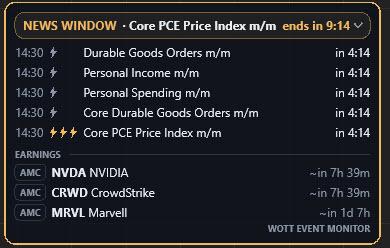
The amber pill at the top names the next high-impact release and counts down to it, as in 14:52, in 5h 40m or in 1d 3h. Below it, each release gets a row with its time, an impact mark and its own countdown. The impact marks are small bolts, three for high impact, two for medium, one for low, so the eye finds the three-bolt rows without reading them.
The EARNINGS section lists the reports that move the Nasdaq, each with a badge: AMC for after the market close, BMO for before the market open, TBD when the company hasn't said. Their countdowns carry a tilde, because companies publish a session, not a minute, and the panel doesn't pretend otherwise.
A few states tell you what the panel knows. NEWS WINDOW with an amber frame means you're inside your no-trade buffer. A row showing now marks a release that has come out; it dims and then drops off the list. data delayed means the connection dropped and you're looking at the last schedule it received, and Waiting for data… appears on a first start without a connection. Clicking the header folds the panel to a single line with the nearest release, and it stays folded after a restart.
The settings that matter
| Setting | What it does | The trade-off |
|---|---|---|
| Upcoming rows, 1 to 15 | How many upcoming releases are listed | More of the week at a glance, more of the chart covered |
| Min impact, the impact filter, off by default | Hides releases below the level you pick | A shorter list, and no warning about the medium releases that move NQ anyway |
| Enable no-trade window, Minutes before, Minutes after | Amber frame and NEWS WINDOW pill around every high-impact release | Wider buffers mean fewer trades near data and more of the day marked off |
| Alert minutes before, Alert sound file | One sound per high-impact release, the built-in WotT Chime or any WAV from NinjaTrader's sounds folder | Too short a lead leaves no time to flatten; too long and the sound means nothing |
| Time display | Your PC's local time or New York time, daylight saving handled | Local suits a European desk, ET matches every US calendar |
| Layout | Corner, offsets, opacity, font size, watermark | Placement is personal; keep it off the price scale |
The sound plays once per high-impact release, even with the panel hidden, so it's the one part that works with your eyes on another screen.
Three setups
A trader who stays flat through high-impact data wants the window and the alert more than the list. A short list of three to five rows, the impact filter off so that medium releases still show, a window of something like 5 minutes before and 10 after, and the alert 8 minutes out, three minutes before the frame turns amber, which leaves time to close a position without rushing.
A trader who trades the release, fading the first spike or following the first minute, needs the countdown and the list: ten rows or more, the window off or short, and the alert further out, 10 minutes or so, to be at the screen and set up in time.
A trader who wants the cleanest chart folds the panel to one line, sets the impact filter to high, and turns the watermark off and the opacity down. The countdown pill still shows what's next.
The three ways of handling a release, and what each costs, are in trading around news events.
What it doesn't do
The panel informs and nothing more. It never touches orders: no blocking, no flattening, no link to an ATM strategy. A limit that the platform enforces is a different tool, covered in the daily loss limit post.
It lists what the site's calendar lists: US dollar releases, a short list of events in other currencies that tend to reach NQ, such as ECB, Bank of England and Bank of Japan decisions, and Nasdaq-relevant earnings. There's no currency filter. In Market Replay it keeps showing the real, upcoming schedule rather than the replayed day's, so it won't mark the old releases on a replayed session. And earnings rows, with their approximate times, don't arm the no-trade window or the sound.
I built it for my own session. For most of the year the 8:30 AM ET releases land at 14:30 in Central Europe, inside my window, and I'm flat before them, so the countdown and the sound are the parts I watch.
Educational content, not investment advice. Futures trading involves substantial risk of loss. Examples are for illustration only. Read the full Risk Disclosure.