How to Import Indicators and Add-Ons into NinjaTrader 8
Every NinjaTrader 8 tool you download arrives one of two ways: a NinjaScript zip you import in three clicks, or raw .cs source files you drop in a folder and compile. Here's both paths, plus how to update, remove, and fix the errors that stop most people.
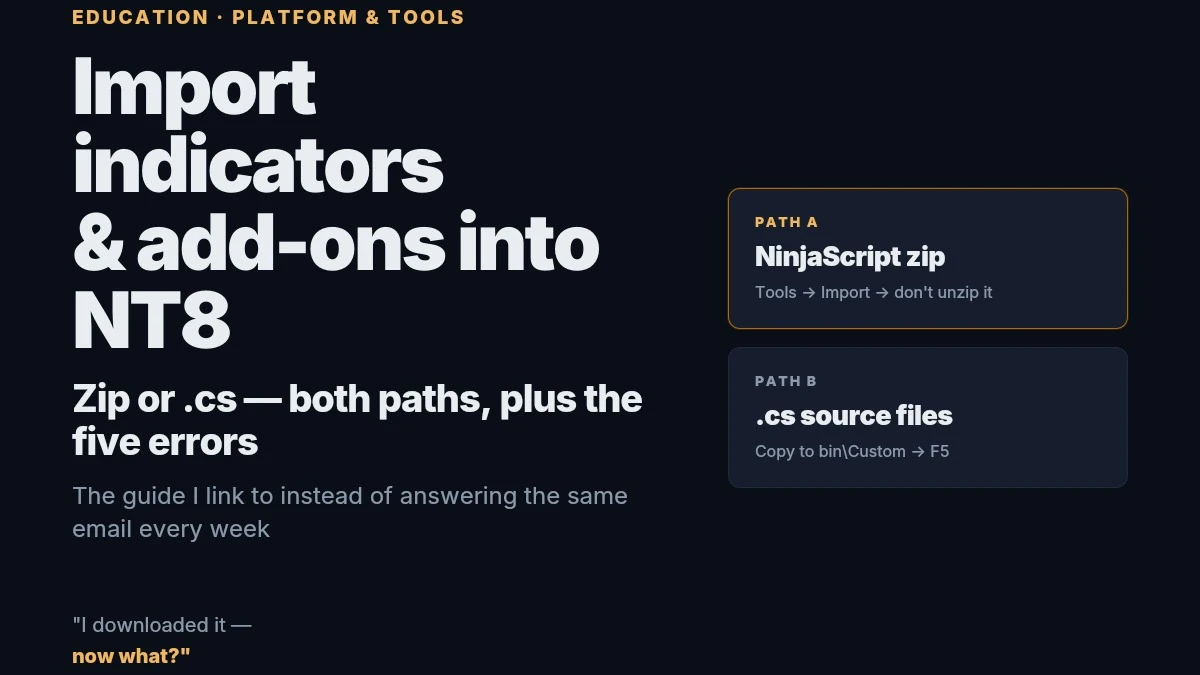
I ship free NinjaTrader 8 tools from this site, and the most common support question isn't about the tools. It's "I downloaded it, now what?" So this is the guide I link to instead of answering the same email every week.
It covers both ways a NinjaScript tool can reach you: a zip archive you import through the platform, and loose .cs source files you copy into a folder and compile. Then updating, removing, and the handful of errors that account for nearly every "it doesn't work" message I get.
Takes about two minutes when it goes right. When it doesn't, the fix is almost always in the last section.
Before you start: which file do you have?
Look at what you downloaded before you touch NinjaTrader.
A .zip file. This is a NinjaScript archive, exported from NinjaTrader by whoever built the tool. Go to Path A. Don't extract it — NinjaTrader reads the zip directly, and a folder of extracted files is the number one reason imports fail.
One or more .cs files. That's raw C# source, usually from a forum post, a GitHub repo, or someone who sent you their indicator. Go to Path B.
If you want to know what's inside a zip, open it in Windows without extracting. A .dll inside means the tool is a compiled assembly: you're getting a build, not the code, and you won't be able to open it in the NinjaScript Editor later. A .cs inside means source: NinjaTrader compiles it on import and you can read every line afterward. Both are normal. Everything I publish here ships as a compiled .dll — more on why at the end.
One thing that won't work in either path: NinjaTrader 7 archives. NT8 rejects them, and there's no converter. If the download page says NT7, it's the wrong tool.
Optional, but I do it before importing anything that touches order routing: Control Center → Tools → Export → Backup File. Thirty seconds, and if an add-on ever breaks your workspace you restore instead of rebuilding.
Path A — importing a NinjaScript zip
This is the path for every tool on this site and for anything you buy from a vendor.
1. Download the zip and leave it zipped. Desktop or Downloads, doesn't matter.
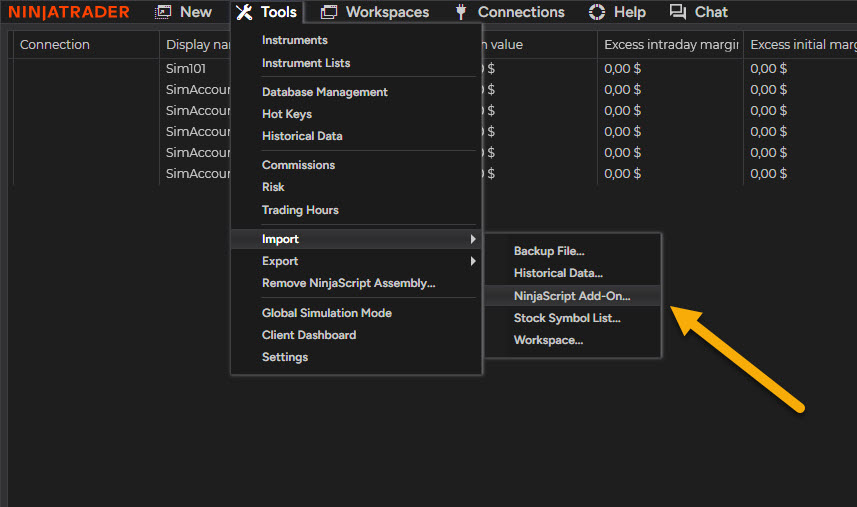
2. In the Control Center, go to Tools → Import → NinjaScript Add-On…
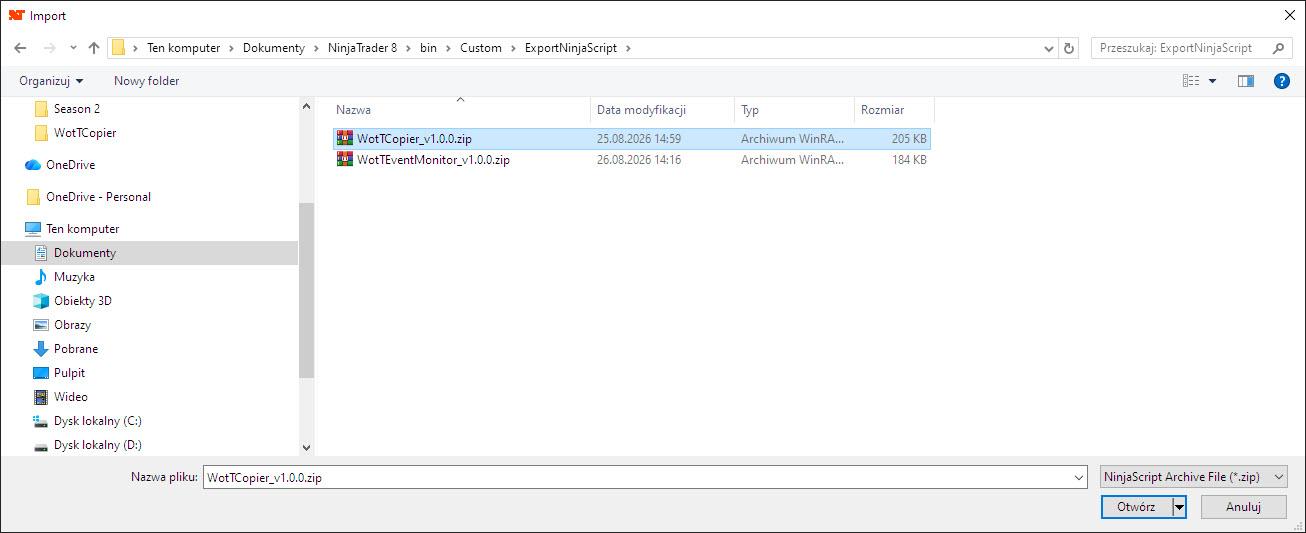
3. Pick the zip file and confirm. NinjaTrader unpacks it into Documents\NinjaTrader 8\bin\Custom, and if the archive contains source code, compiles it on the spot.
4. Answer the prompts, if any. Two you may see:
- "…already exists. Do you want to replace it?" about files named like @SMA, @EMA, @Bollinger. Those are NinjaTrader's own system indicators, bundled because the tool depends on them. Answer No. Your copies are current; replacing them with older ones is how people break every chart on their platform in one click.
- A message that NinjaTrader needs to restart. You'll get this when the archive contains a compiled
.dll. Restart before you go looking for the tool — assemblies load at startup, not on the fly.
5. Find it. Where it shows up depends on what it is, and this trips up more people than the import itself:
- Indicator → open a chart, right-click → Indicators… (or Ctrl+I) → it's in the Available list on the left → Add → OK.
- Add-on with its own window (my Trade Copier is one) → Control Center → New menu. It's a new entry at the bottom of that list, not in the Indicators dialog.
- Strategy → the Strategies tab in the Control Center, or right-click a chart → Strategies…
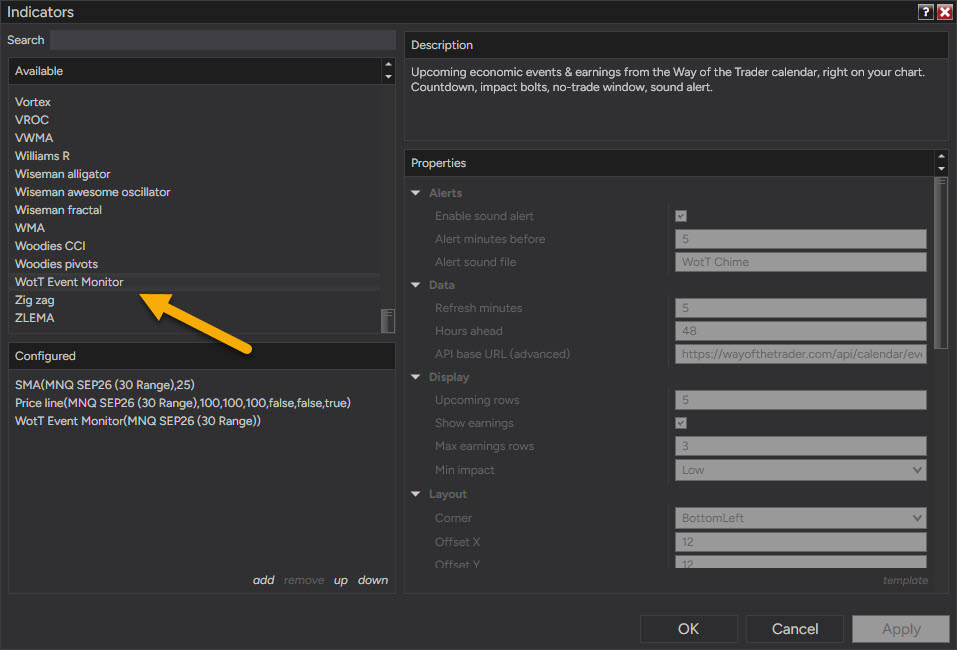
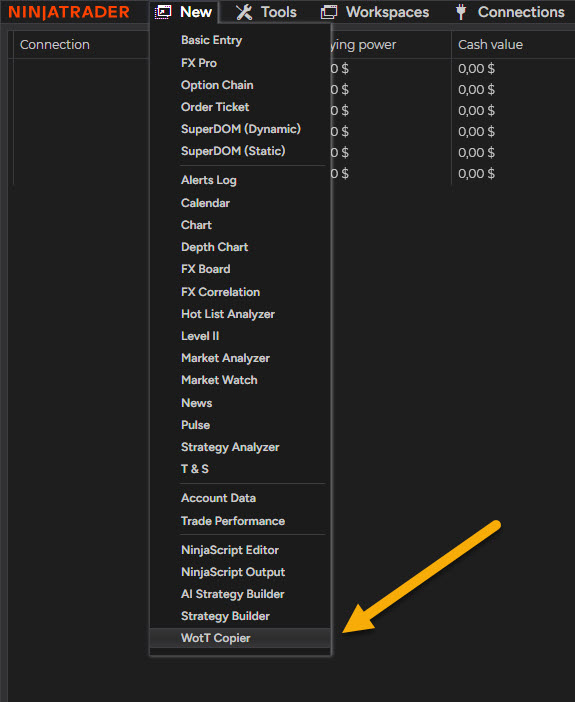
That's the whole import. If you're here for one of my tools, you're done — skip to the last section for the two tool-specific notes.
Path B — .cs source files (copy, then compile)
Use this when someone hands you code instead of an archive. It's one extra step, and you get one real advantage: you can read the file before it runs on your machine.
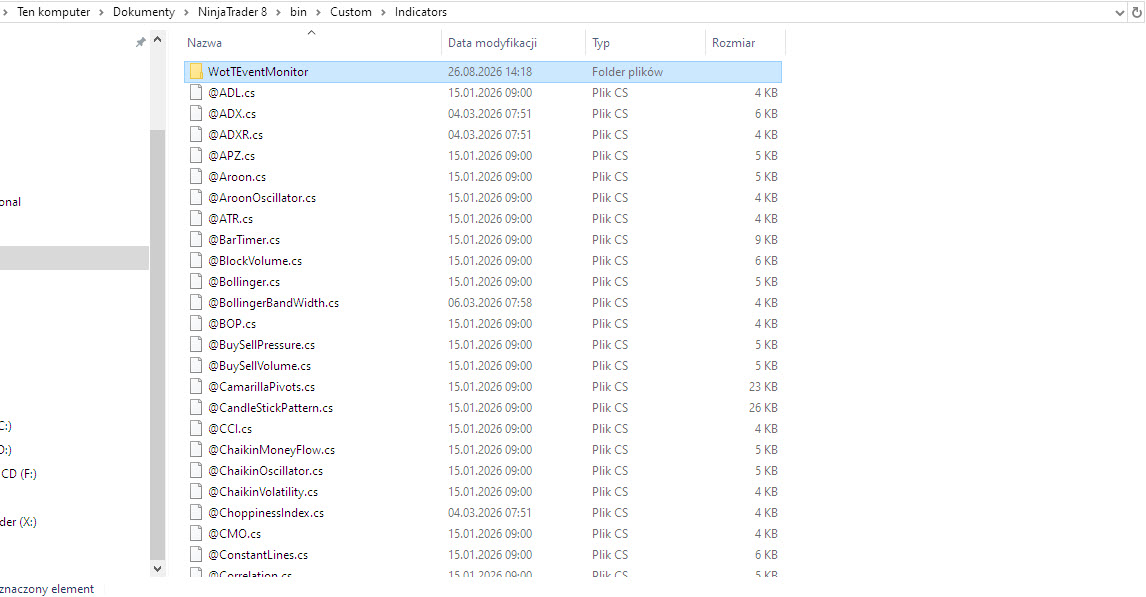
1. Copy the .cs file into the matching subfolder of Documents\NinjaTrader 8\bin\Custom\:
- indicators →
Custom\Indicators\ - strategies →
Custom\Strategies\ - add-ons →
Custom\AddOns\
Match the type. That's where the importer would have put it, and the NinjaScript Editor's folder tree mirrors these folders.
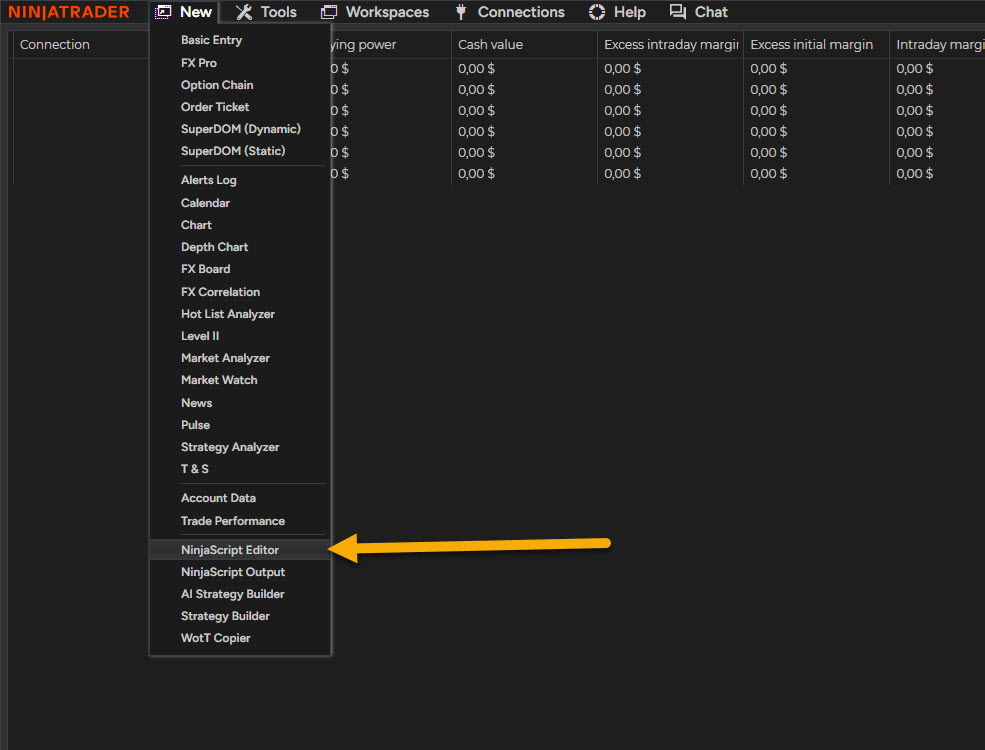
2. Open the NinjaScript Editor: Control Center → New → NinjaScript Editor.
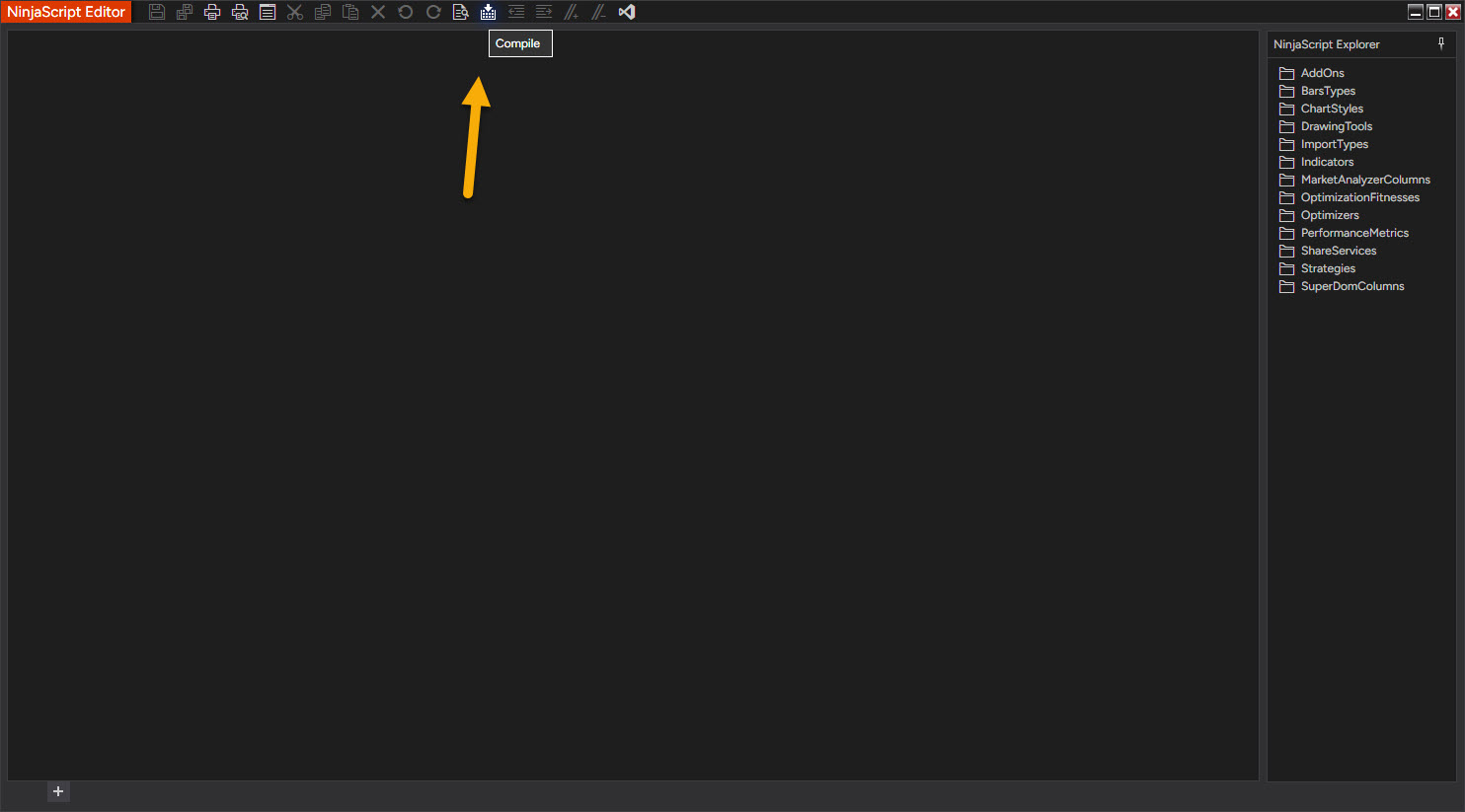
3. Compile: press F5 or click the compile icon in the editor toolbar. A small animation runs in the bottom-left corner and NinjaTrader plays a sound when it finishes. No errors listed at the bottom means it built.
4. Find it the same way as in Path A. No restart needed for source-only scripts — they're part of the custom assembly NinjaTrader just rebuilt.
If you want to inspect the code first: in the editor, double-click the folder on the right (Indicators, Strategies, AddOns), then double-click the file. Look for anything that submits orders, reads files, or calls out to the internet. A trend indicator has no business doing any of those.
Updating a tool you already have
Compiled zip (.dll): the clean way is remove first, then import the new version. Control Center → Tools → Remove NinjaScript Assembly… → select the tool → Remove → restart → import the new zip → restart again. Importing over the top usually works too, but remove-then-import is what NinjaTrader support recommends when something looks stale.
Source (.cs): overwrite the file in the Custom folder and compile again (F5). If the file name didn't change, charts that already use the indicator pick up the new version after the compile.
Your settings survive updates as long as the tool's internal name didn't change. Chart templates and workspaces reference indicators by name, not by version.
Removing a tool
Compiled: Tools → Remove NinjaScript Assembly… → select → Remove → restart. Restarting matters; the assembly stays loaded until you do.
Source: in the NinjaScript Editor, expand the folder on the right, right-click the file → Remove, then compile. Deleting the .cs from the folder in Explorer and compiling does the same thing.
Remove tools you don't use. Every custom script is part of one compiled project, and the next section explains why that matters.
When it doesn't work: the five errors behind almost every failed import
1. Compile errors after an import, and the tool you just added looks fine. NinjaTrader compiles everything in bin\Custom into a single assembly. One broken file anywhere — an indicator you tried in 2023, a half-finished strategy from the Strategy Builder — blocks the whole build, and the error surfaces the moment you import something new. It looks like the new tool's fault. It usually isn't.
Fix: New → NinjaScript Editor → F5. The error list at the bottom names the file and line. On the right, double-click the object type folder, find the file, right-click → Exclude From Compilation (keeps the file, skips it) or Remove (deletes it). Compile again. Repeat until the list is empty.
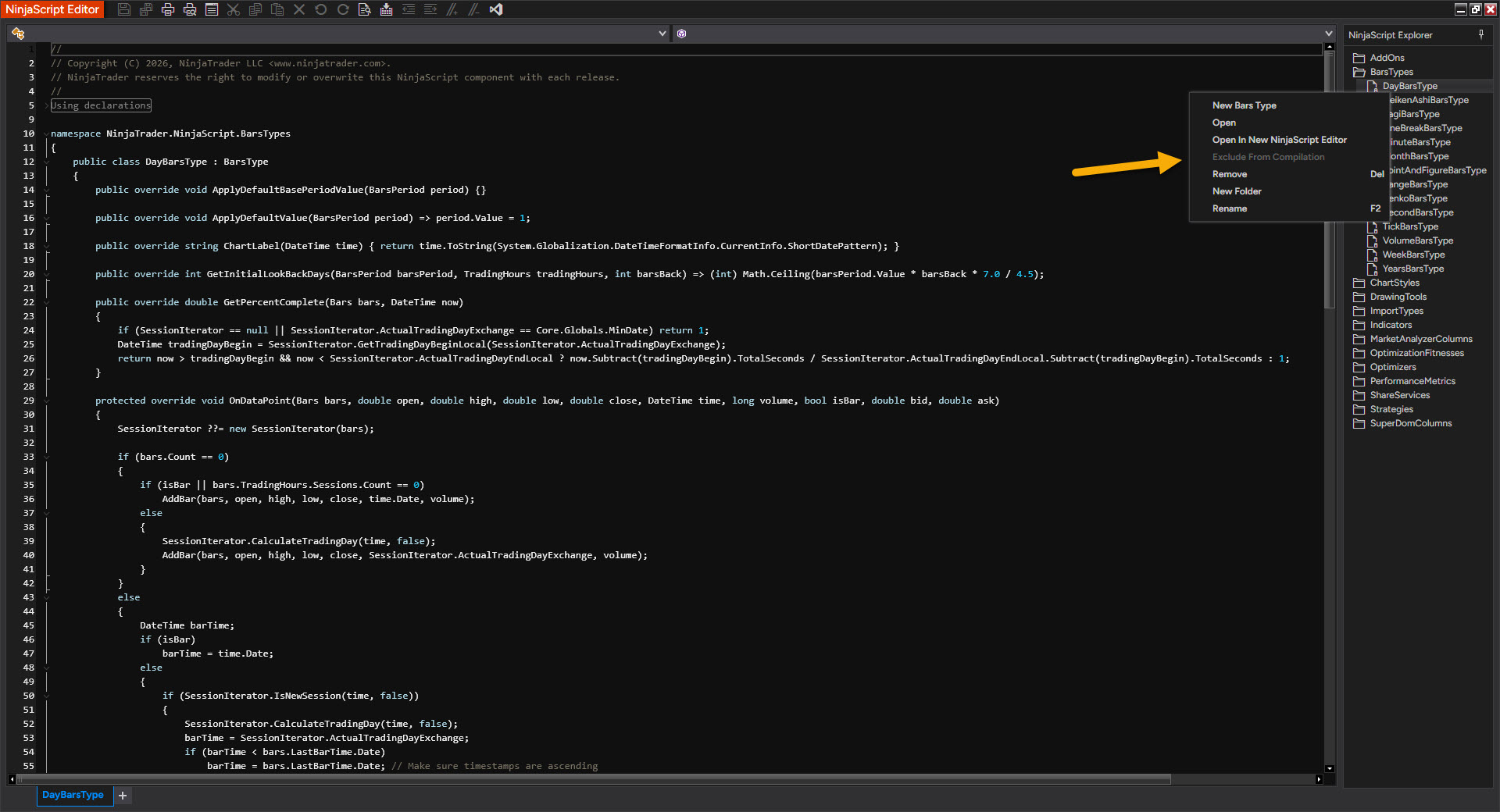
2. The import said it worked, but nothing shows up. In order of likelihood: you're looking in the wrong place (add-ons live under New, not in the Indicators dialog); the archive had a .dll and you haven't restarted yet; your antivirus quarantined the .dll on the way in — check its quarantine list, restore the file, and add Documents\NinjaTrader 8 to its exclusions.
3. "Unable to load custom assembly. Original version has been restored." Shows on startup after a failed compile or a bad file. Open the NinjaScript Editor and press F5 — the error list tells you which file, then handle it as in #1. If NinjaTrader won't start at all, use Safe Mode: close NinjaTrader, hold Ctrl while double-clicking the NinjaTrader icon, keep holding until the Control Center appears. Help → About confirms you're in safe mode. Custom assemblies don't load, so you can remove the offender (Tools → Remove NinjaScript Assembly, or delete the .cs), compile, and restart normally.
4. Random compile or load errors that come and go. Check whether your Documents folder is synced by OneDrive. It's the most common cause of NinjaScript errors that make no sense: the sync client locks files in bin\Custom mid-compile or replaces them with placeholders. Exclude Documents\NinjaTrader 8 from sync, or move the whole thing to a local path.
5. Version mismatch. Help → About shows your platform version. NinjaTrader 8.1 (released in 2023) moved to a newer .NET framework, and a number of compiled add-ons built for 8.0 needed an updated build from their authors before they'd load. If a tool's download page lists a minimum version, believe it. Everything on this site is built and tested on 8.1 — if you're still on 8.0, update the platform first, not the tool.
If none of the five applies, the log and trace files are the next stop: Control Center → Help → Mail to Support (or open them from the Log tab). Whoever built the tool will ask for them, so send them with the first message.
What you get when you download a tool from this site
Two notes specific to the WotT TradeCopier and the WotT Event Monitor, since they're the reason most people land on this page.
They ship as compiled assemblies. I export them from NinjaTrader with Export as compiled assembly turned on, so the zip contains a .dll and no .cs. You import it (Path A), restart, and you're done. The trade-off is honest: you can't open the code in the NinjaScript Editor, and in exchange every user runs the exact build I tested — nothing on your machine has to compile, so nothing on your machine can break it. Versions and what changed in each are on the tool pages.
They live in different places. The Trade Copier is an add-on with its own window: after the restart it's in the Control Center under New. The Event Monitor is an indicator: right-click a chart → Indicators → Available list. Neither will appear under the other menu, and that's the message I get most.
And the same rule I apply to any script that can touch an order: run it on a Sim101 account or in Market Replay first, watch it do what the page says it does, and only then point it at an account with money in it. That goes for mine too.
This is an installation guide, not trading advice. Nothing here changes how NinjaTrader routes orders; the tools you install do — so read their pages before you turn them on.
Educational content, not investment advice. Futures trading involves substantial risk of loss. Examples are for illustration only. Read the full Risk Disclosure.