Connecting NinjaTrader 8 to a Lucid Account via Tradovate, Step by Step
Five steps from Lucid credentials to a live MNQ chart in NinjaTrader 8: the Tradovate sign-in most people skip, the Multi-provider checkbox, why Account Type must say Simulation, and how to tell your evaluation account from the Sim101 decoy.
You need three things before you start: the current version of NinjaTrader 8 Desktop, the Tradovate credentials from your Lucid dashboard (they also arrive in the account email — these are not your lucidtrading.com website login), and ten minutes. If you're still deciding whether an evaluation account is worth buying in the first place, what a prop firm evaluation actually is covers that; this post assumes the account exists and walks the connection. What goes on the chart afterward is a separate topic — my full NinjaTrader chart setup post has that.
Step 1 — Sign in to Tradovate first, even if you'll never trade there
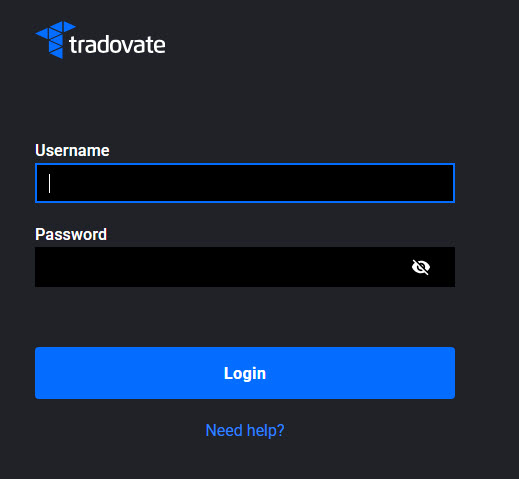
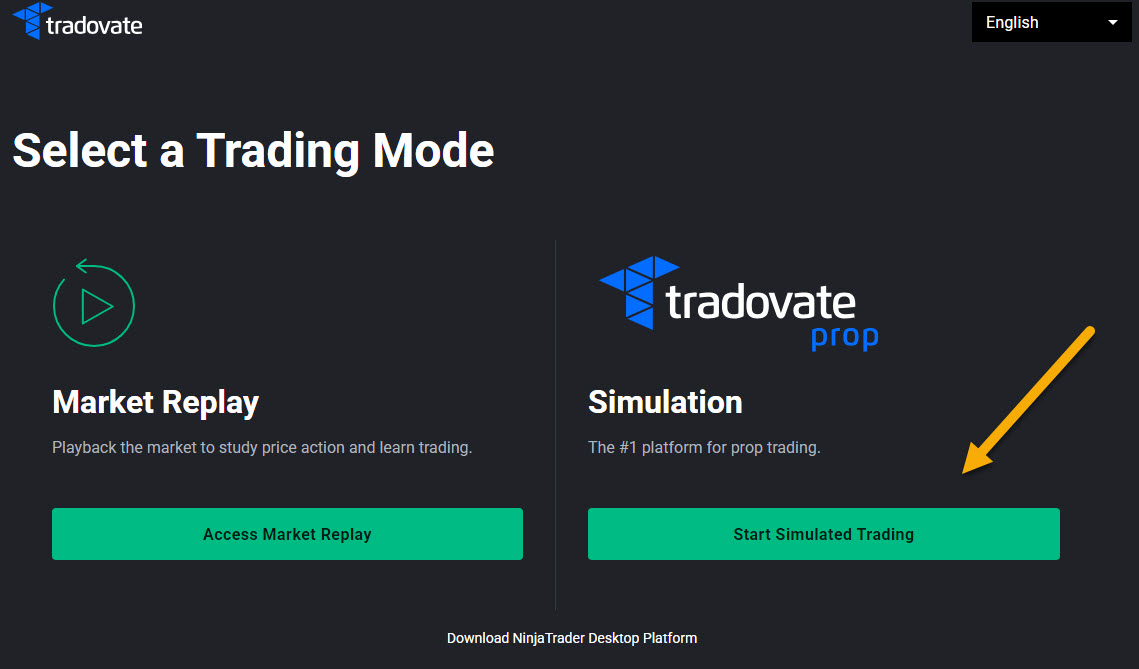
Go to trader.tradovate.com and log in with the Lucid credentials. Lucid is explicit about this: new accounts must sign in to Tradovate once before any other platform will connect, NinjaTrader included. Skipping this step is behind a large share of failed first connections.
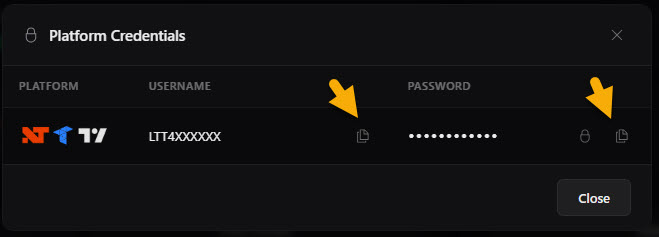
Copy and paste the credentials from the dashboard. Don't retype them — a pasted trailing space or a typed zero-for-O is the other most common reason the login fails, and the error message won't tell you which character is wrong.

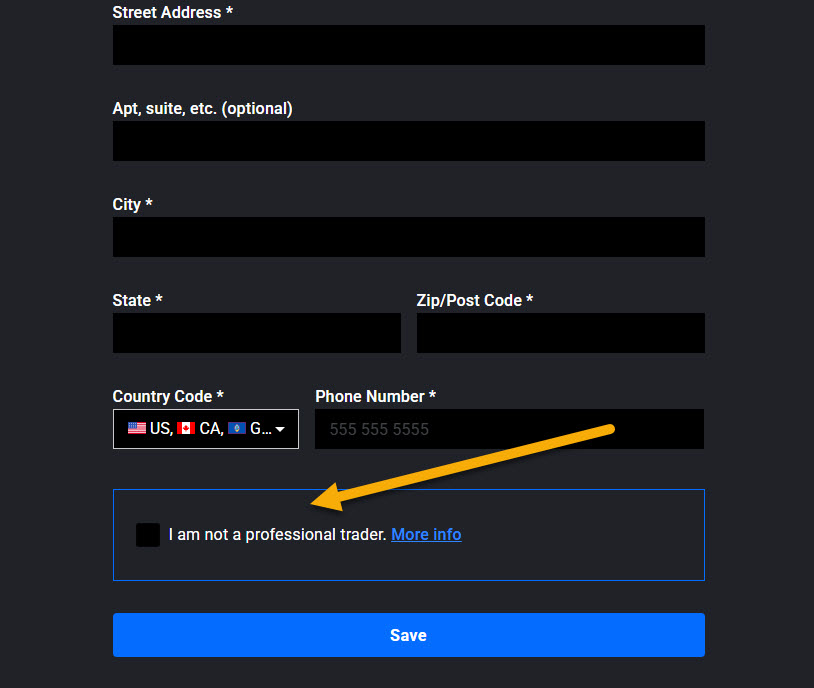
While you're in there, Tradovate will walk you through the CME Market Data Subscriber Certification. Answer it as Non-Professional: you're an individual trading your own decisions, not a licensed professional at an institution. This certification is what entitles the account to real-time CME data (NQ, MNQ, ES and the rest trade on CME Group exchanges), and it lives on the Lucid-issued login, which matters later.
Step 2 — Enable Multi-provider mode in NinjaTrader
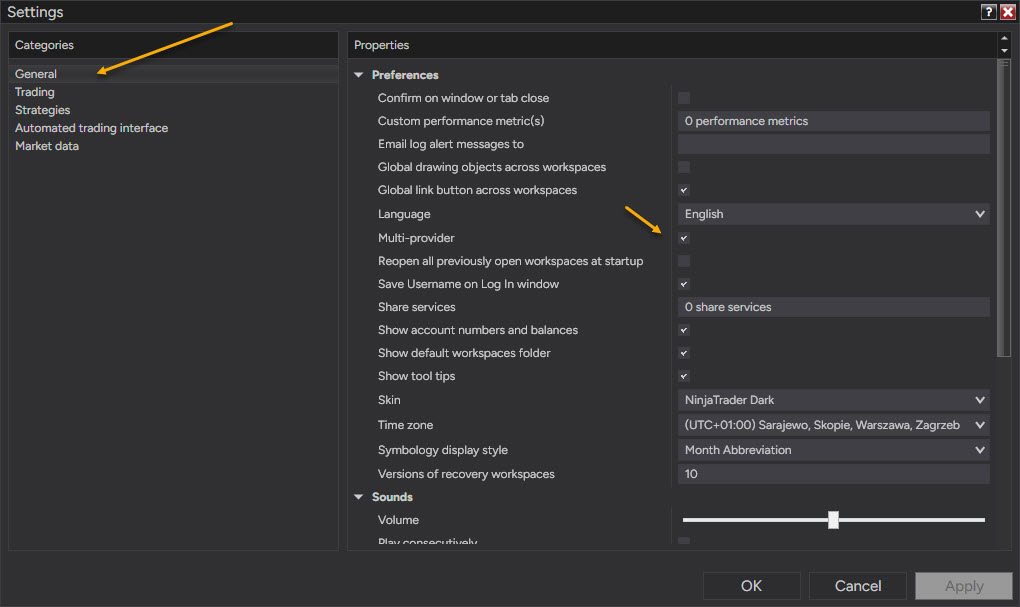
In NinjaTrader 8: Tools → Settings → General (called Options before version 8.1.5) → check Multi-provider. Then close and restart the platform — the setting doesn't fully apply until you do, and the connection type you need in the next step may not appear without the restart.
Multi-provider mode is what lets NT8 hold connections to more than one provider at once. Even with a single Lucid account it's the documented path for prop connections; once you run several evaluations side by side, it's what makes that possible at all.
Step 3 — Configure the connection
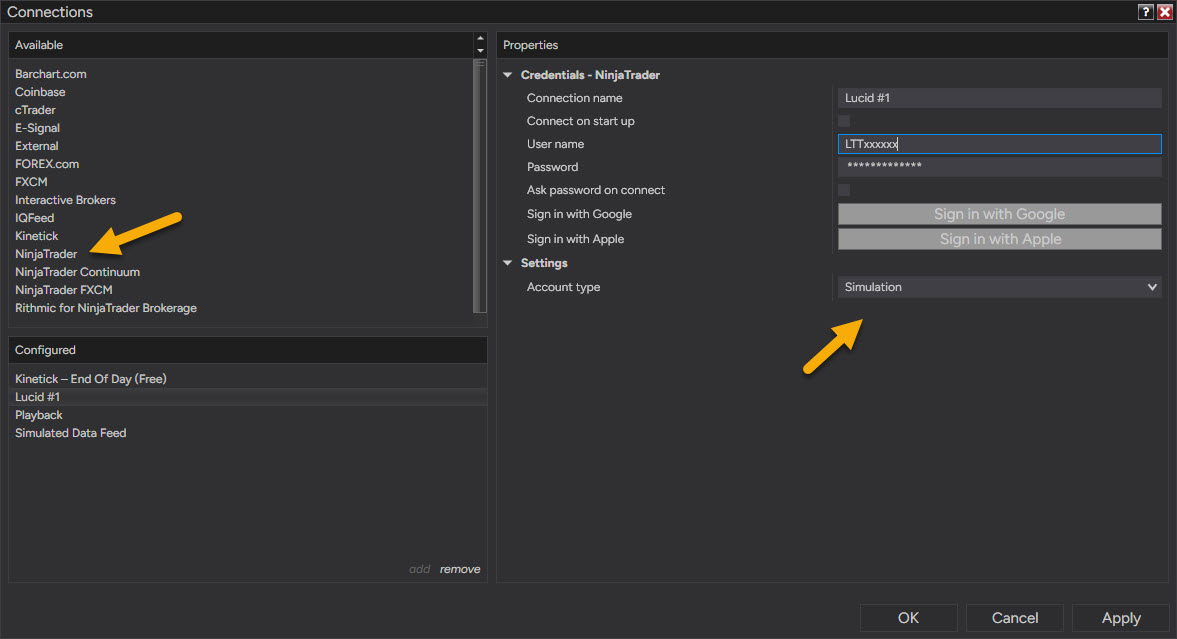
Control Center → Connections → Configure. From the Available list, add NinjaTrader: that's the name of Tradovate's direct API connection in NT 8.1 and later. If your build also shows an older entry literally called "Tradovate", leave it alone; that's a legacy adapter.
Give the connection a name you'll recognize in a list, because one day it won't be alone: Lucid-25K-Eval-01 beats My connection.
Step 4 — Credentials, and the setting that fails silently
Paste the Tradovate username and password from the Lucid dashboard, and set Account Type to "Simulation." Not Live. Evaluation or funded makes no difference here — Lucid accounts on the Tradovate feed always connect as Simulation, and "Live" just returns a login error with no explanation.
The name is a licensing artifact, not a judgment: the account is real, the rules are real, the payouts are real. It runs on Tradovate's prop simulation environment, so that's what NT8 has to be told.
Step 5 — Connect, and pick the right account
Connect from the Connections tab, then open Control Center → Accounts. Two accounts appear and only one of them is yours in any meaningful sense:
| Account | What it is |
|---|---|
| LFE… (or similar Lucid prefix) | Your evaluation account. Trade this one. |
| Sim101 | NinjaTrader's built-in simulator, attached to every connection automatically. Ignore it. |
Trades on Sim101 do not count toward your evaluation — nothing you do there ever reaches Lucid. The double listing confused me the first time I connected, and the failure mode writes itself: a green day on an account nobody is grading. Before the first order, check that the account selector in Chart Trader (or the DOM) shows the LFE account, and check it again after any restart.
Open an MNQ chart, confirm live prices are ticking, and you're connected.
When it doesn't work
"Data is delayed." The data entitlement sits on the Lucid-issued Tradovate login — not on any personal NinjaTrader or Tradovate account you may also have. Buying a data subscription on your own account does nothing for the Lucid connection. Log in to trader.tradovate.com with the Lucid credentials, finish the Non-Professional certification from Step 1, and restart NT8. At the time of writing, evaluation accounts get live CME data once the certification is complete; if your dashboard still asks for a paid CME data subscription, it's a few dollars a month and activates within the hour.
Login keeps failing. In rough order of likelihood: retyped credentials instead of pasted, Account Type left on Live, or the Tradovate first sign-in from Step 1 never happened.
NT8 doesn't enforce Lucid's rules. The trailing Max Loss Limit, the daily loss rules and the end-of-day flatten are enforced by Lucid on the firm's side. The Accounts tab has Daily loss limit and Trailing max drawdown columns that read out limits held on the server when the connection reports them, and since version 8.1.8 you can lock a prop account yourself, but nothing in the platform stops you on its own. Keep the Lucid dashboard open in a browser tab whenever you're in a trade; the platform will happily let you cross a line the firm will fail you for.
One more thing worth knowing: Tradovate-based connections can run simultaneously, so a second evaluation is just Steps 3–5 repeated with the next set of credentials. Managing orders across several of them is what the tools page exists for.
Educational content, not investment advice. Futures trading involves substantial risk of loss. Examples are for illustration only. Read the full Risk Disclosure.