NinjaTrader Disconnects: What Happens to Your Orders and How to Protect an Open Position
When NinjaTrader 8 loses its connection, some protection lives on the broker's servers and some on your PC. Which orders keep working, why a filled target can leave the stop active, what server-side ATMs change, and what to do in the first minute on Tradovate and Rithmic accounts.
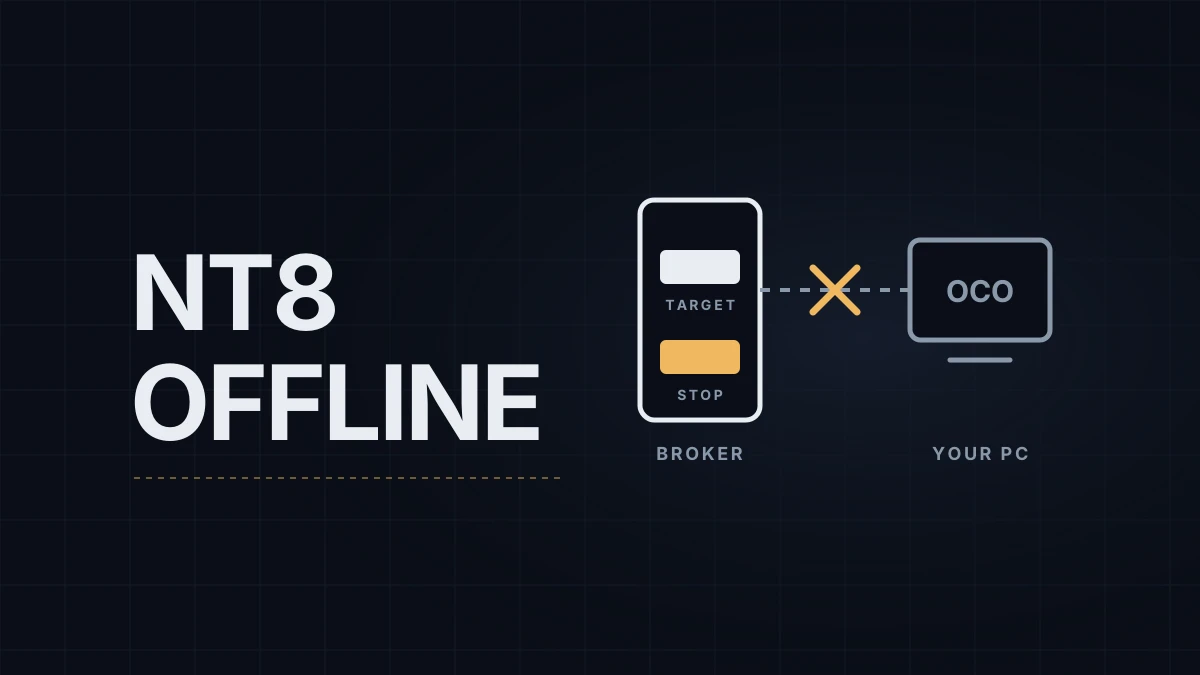
A long MNQ position has a stop below and a target above, linked as an OCO pair (one cancels the other). The internet drops, NinjaTrader's connection light turns red, and while it's offline price reaches the target, which fills. Nothing cancels the stop, because the link between the two orders lived on the PC. An hour later price falls through the stop, which fills too, and the account is now short a position nobody planned.
That's the failure most traders don't expect, and it follows from one fact: when NinjaTrader 8 loses its connection, some of your protection sits on the broker's servers and some sits on your computer. The platform basics are in NinjaTrader 8 chart setup; this post covers the Tradovate-based accounts that connect through the connection called NinjaTrader, and Rithmic accounts.
What keeps working and what stops
| Order or feature | Where it lives | When NinjaTrader drops |
|---|---|---|
| Limit, stop-market and stop-limit orders shown as Accepted or Working | At the broker or the exchange | Keep working |
| OCO link between stop and target | On your PC (Rithmic; most cases on the NinjaTrader connection) | Not enforced: both orders can fill |
| ATM stop and target while the entry is still working | Not sent yet; they go out when the entry fills | If the entry fills while you're offline, no bracket is placed |
| Auto Breakeven, Auto Trail, Auto Chase | On your PC | Freeze; the orders stay at their last price |
| Simulated stops and market-if-touched orders | On your PC (shown as Initialized or Trigger Pending) | Don't trigger; may show as Unknown after reconnecting |
| NinjaScript strategies and indicator-based trails | On your PC | Stop managing the position |
| Server-side ATMs (beta) | NinjaTrader's servers, NinjaTrader connection only | Keep working, including the OCO link and a one-step trail |
Evaluation accounts and the standard funded accounts at the firms covered here are simulated, so "at the broker" here means the provider's simulation servers, but the logic is the same: an order that the server has accepted survives your PC, and anything NinjaTrader still has to calculate does not. The ATM side of this is introduced in the NinjaTrader 8 ATM strategy guide.
Settings that change the picture
Server-side ATMs. Under Tools › Settings › Strategies (called Options before version 8.1.5), the option Use server side ATMs (beta) moves the bracket and its OCO link to NinjaTrader's servers, where they keep working even when the platform is disconnected. It's available only on the NinjaTrader connection and only with Multi-provider mode disabled, so it doesn't apply to Rithmic, and on a Tradovate-route prop account only if the firm's setup works without Multi-provider; some, Apex among them, require it. The trade-offs: Auto Trail becomes a single step instead of three, simulated stops aren't available, the ATM can't be used from NinjaScript or attached to an existing position that has no protection, and templates are saved per instrument on the server.
Strategy behavior on connection loss. For automated strategies, the same Settings page has an On connection loss section. Handling offers Keep Running (carry on as if nothing happened), Recalculate (rebuild the strategy position when the connection returns) and Stop Strategy. Disconnect delay seconds sets how long an outage must last before Recalculate or Stop Strategy acts, and Number of restart attempts and Restarts within x minutes cap the retries. These settings cover NinjaScript strategies only, not manual or ATM trading.
The status light. The connection icon in the bottom-left corner of the Control Center has five states: green Connected, yellow Connecting, orange Connection Lost (Price Server), red Connection Lost (Order Server) and gray Disconnected. Orange means you can't see prices; red means you can't send or change orders, which is the one that matters for an open position. With more than one connection, hovering over the icon shows the status of each one.
The first minute
- Read the light. Orange with the order server still up means orders work but the chart is stale. Red or gray means NinjaTrader can't touch your orders.
- Open the broker's own platform. For Tradovate accounts, sign in to Tradovate on the web or phone, make sure you're in the Simulated Trading environment, and go to Equity and P&L. For Rithmic accounts, open R|Trader Pro or Rithmic's mobile app and look at Positions. Both show the position and working orders independently of NinjaTrader.
- Decide there. If the stop and target are both working, the position is protected except for the OCO link, so cancel the target or the stop yourself if one fills. If you'd rather be flat, Tradovate's Exit All Positions Cancel All flattens the selected account and cancels its orders, one account at a time if you have several; in R|Trader Pro, the order book's Cncl All & Fltn button cancels the working orders and flattens the position.
- After reconnecting, check the Orders and Positions tabs in the Control Center before the chart. Cancel any orphaned stop or target, and any order showing as Unknown. If an automated strategy was running, its idea of the position may no longer match the account. Disable it and re-enable it once the account is flat; Synchronize All Strategies in the Strategies tab works the other way round, sending a market order to make the account match the strategy.
Preventing the expensive version
A wired Ethernet connection instead of Wi-Fi, Windows sleep and network-adapter power saving switched off, and a phone already signed in to the broker's app reduce the risk. Some traders run NinjaTrader on a VPS, a remote server in a data center, which protects against home outages but not against platform crashes, and some prop firms restrict VPN or cloud-server use. Topstep's help center says the firm "does not offer courtesy adjustments for connectivity issues" at the time of writing, so a loss caused by your own connection dropping stays on the account.
My exits run through an ATM, a target of at least 35 points with a trailing stop that takes over when the move has momentum, and the trailing logic lives on my PC, so I treat the stop at the broker as the real protection: if the platform goes, the trail freezes where it was, but the stop is still there.
Educational content, not investment advice. Futures trading involves substantial risk of loss. Examples are for illustration only. Read the full Risk Disclosure.