Order Flow+ Volume Profile in NinjaTrader 8: Session, Composite and Custom Profiles
NinjaTrader 8 has two volume profiles, and only the Order Flow+ one builds history without Tick Replay and adds value areas and naked POCs. Setting it up for NQ: the settings that matter, session and composite profiles, the drawing tool, and when a free TradingView profile does the job.
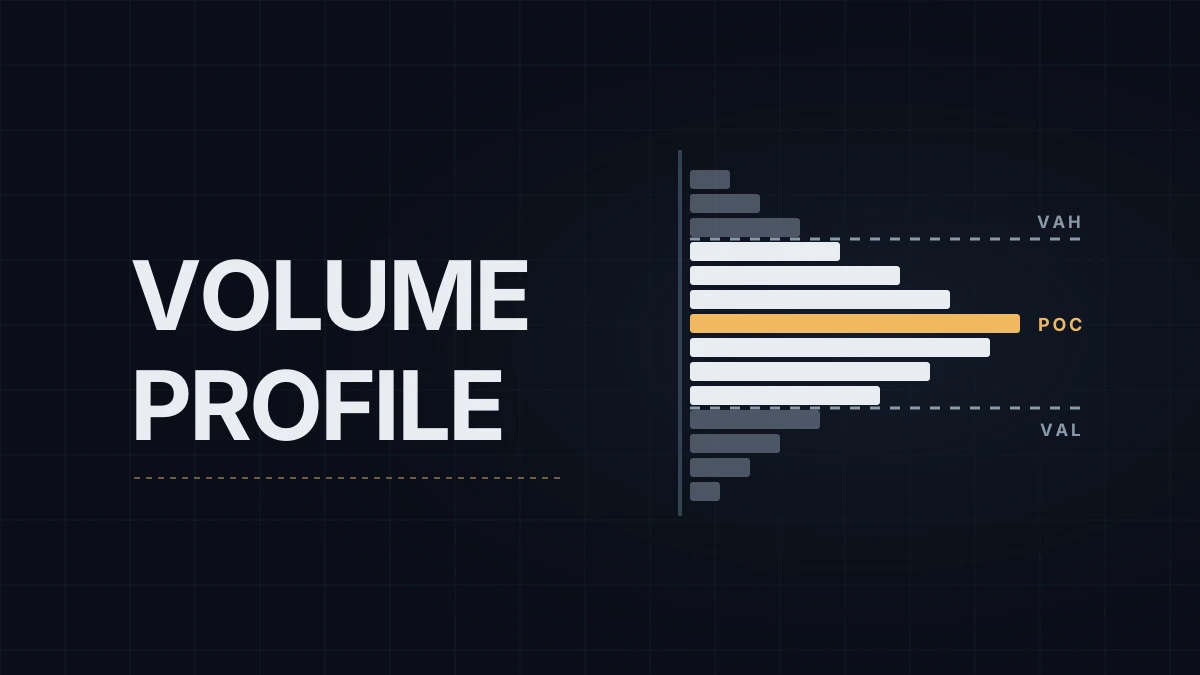
NinjaTrader 8 has two indicators with "Volume Profile" in the name, and they aren't the same tool. The free Volume Profile counts trades from the moment it's added to the chart; without Tick Replay it has no history and starts over when the chart reloads, and it draws no value area lines. The Order Flow Volume Profile, part of the Order Flow+ package, builds profiles from historical data: one per session, a composite of several days, or a range you draw yourself, each with a point of control (POC), a value area and optional lines that extend into later sessions. This post sets up the second one for NQ, the E-mini Nasdaq-100 future.
The chart itself is assumed to be set up as in NinjaTrader 8 chart setup, and what a volume profile measures is covered in key levels on NQ. At the time of writing, Order Flow+ is included with a NinjaTrader Lifetime license and with funded NinjaTrader Brokerage accounts, and NinjaTrader Prop bundles it for traders at its partner prop firms; the NinjaTrader license on a prop account has the details.
The settings that decide what gets counted
Right-click the chart, open Indicators, add Order Flow Volume Profile and look at the Set up group of its properties:
| Setting | Options | On NQ |
|---|---|---|
| Profile type | Volume, Tick, Price | Volume for levels. Price prints letters for 30-minute windows, the closest NinjaTrader gets to a TPO chart |
| Display mode | Standard, Buy sell, Delta, Heat, Heat Map, Outline, Time color | Standard for levels; Buy sell and Delta need Tick resolution |
| Profile period | Sessions, Bars, Weeks, Months, Composite | Sessions for one profile per day, Composite for several days |
| Trading hours | any trading hours template | Lets an ETH chart draw RTH-only profiles |
| Resolution | Minute (default), Tick | Minute is enough on minute charts; a composite on a chart with bars shorter than a minute, such as a tick chart, needs Tick, which is more precise and heavier |
| Ticks per level | default 1 | See below |
| Value area (%) | default 68 | Keep 68, or set 70 to match a platform you compare against |
Ticks per level sets the row height, and it changes how a profile looks more than any other setting. One NQ tick is 0.25 points, so on a 400-point session one tick per level gives 1,600 rows, four ticks give 400 rows of 1 point, and 20 ticks give 80 rows of 5 points. The thinnest setting shows every small node and makes the outline hard to read; a coarse one smooths it out and can move the POC by a few points, because neighboring prices are pooled. Pick one value for session profiles and keep it, so that one day's profile can be compared with the next.
The 68% default is one standard deviation around the POC. TradingView and many other platforms default to 70%, so value area edges taken from two platforms can sit a row or two apart for this reason alone.
One profile per session
- Set Profile period to Sessions and leave the number of sessions at 1. A higher number groups several sessions into one repeating profile.
- Under Trading hours, pick the template the profiles should follow. An ETH chart can draw RTH-only profiles this way; an RTH chart can't draw ETH ones, because the indicator only filters data already loaded. NinjaTrader trading hours templates explains the difference between the two.
- In the Lines group, switch on Extended naked POC and Extended naked Value Area to project levels from earlier sessions forward until price trades back to them.
- To mark the first hour, set Initial balance time (in minutes) to 60. The Initial POC, Initial Value Area and Initial Balance Range lines, switched on in the Lines group, then cover the first 60 minutes of each session, so on an ETH template that's the first hour of the Globex evening, not the US open.
- In the chart's Data Series window, raise Days to load until it covers every session you want profiled.
Composite profiles
A composite merges several sessions into a single profile, which is how multi-day value areas and the high-volume nodes of a week or a month are found.
- Set Profile period to Composite.
- Choose Compose by: Days Back or Weeks Back for a rolling window, Start Date for a fixed one, Chart for everything loaded, or Visible Screen Range for a profile that recalculates as you scroll.
- Set Profile alignment to Right and switch on Display in margin to park the composite in the right margin, clear of the bars. If the margin is too narrow, widen Right side margin in Chart Properties.
- Check Days to load against the window: a 20-day composite on a chart that loads 5 days is a 5-day composite.
Weeks and Months, the other two periods, draw one repeating profile per week or per month instead of one merged block.
A custom range with the drawing tool
For a profile of one specific move, from the overnight low to the US open or across a three-day balance, the drawing tool is quicker. Open the Drawing Tools menu, pick Order Flow Volume Profile, click at the start of the range, move to the end and click again; the box shows "Calculating..." while the data loads. Double-click the drawing to open its properties: the same settings as the indicator, without Profile period, since the two clicks define the range. To reuse your settings, save them as a template named Default.
A drawn profile covers the range between its two clicks. A profile that keeps updating comes from the indicator, with Composite and Compose by set to Chart or Visible Screen Range.
When TradingView is enough
A routine that needs only yesterday's POC, value area high (VAH) and value area low (VAL) as horizontal lines doesn't require Order Flow+. A session volume profile on TradingView produces the same three levels, close enough once both value areas use the same percentage, as a free volume profile in TradingView shows; the built-in TradingView profiles need a paid plan at the time of writing, and community scripts cover the free one. The levels then go onto the NinjaTrader chart by hand. The Order Flow+ version earns its place when the profile has to live on the execution chart: a developing POC during the session, buy and sell or delta splits, composites that follow the screen, and naked levels that extend themselves.
Order Flow+ comes with my prop account, and the previous session's POC, VAH and VAL from this profile are the levels I mark before each session, on an execution chart that otherwise carries little.
Educational content, not investment advice. Futures trading involves substantial risk of loss. Examples are for illustration only. Read the full Risk Disclosure.