NinjaTrader 8 Alerts to Your Phone: Price Alerts, Email, SMS and Telegram Notifications
A NinjaTrader 8 alert rings on the PC and nowhere else until it gets a Share action. Setting up the email service, pointing an alert at it with a chart screenshot, what's left of SMS gateways, a Telegram bot, and the one thing no setting fixes: the PC has to be on.
A NinjaTrader 8 alert is checked on your PC and announced there: a sound, a pop-up, a line in the Alerts Log. None of it reaches a phone. Getting NinjaTrader alerts to your phone takes one more action on the alert, called Share, which sends the alert's message through a service you set up once. NinjaTrader 8 comes with two such services, email and text message via email, and Telegram can be added with a short script.
Creating the alert itself, on a horizontal line or an indicator plot, is covered in drawing tools and alerts, and the platform setup around it starts with chart setup. This post picks up at the alert's actions.
Step 1: add an email service
- In the Control Center, open Tools › Settings › General (Options in older builds) and click to edit Share services.
- Under Available, select Email and click add. The other built-in type, Text message via email, comes in step 3; anything beyond those two is a custom NinjaScript service.
- Give it a Service name. That's the name the alert will show, so "Phone mail" beats "Email 1".
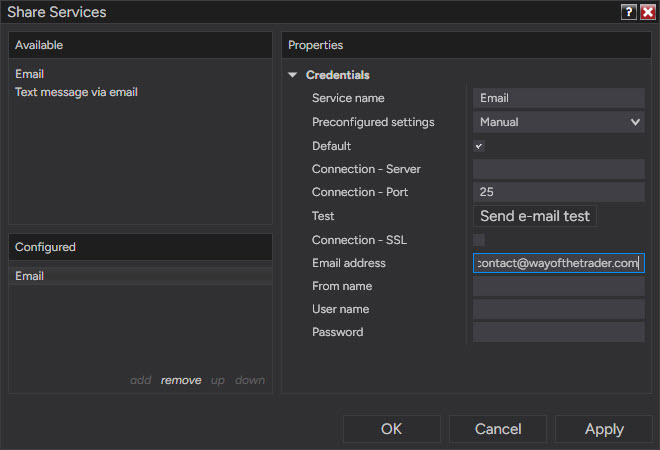
- Pick your provider under Preconfigured settings if it's listed (AOL, Comcast, Gmail, iCloud, Outlook and Yahoo in version 8.1.8), or leave it on Manual and fill in Connection - Server, Connection - Port and Connection - SSL yourself. For a manual Gmail setup that's smtp.gmail.com, port 587, SSL on; NinjaTrader's guide notes that port 465 isn't supported.
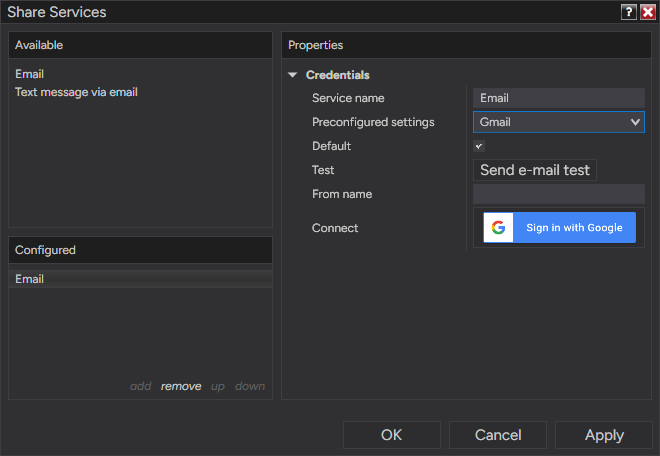
- Enter the Email address (NinjaTrader uses it as the sender), User name and Password where the service asks for them (the Gmail preset has a Sign in with Google button instead), then press Send e-mail test, which sends a test email through the server.
For Gmail, the preset is the route Google itself recommends: Sign in with Google opens Google's own sign-in page, where you allow NinjaTrader to send email on your behalf, and no app password is needed. A manual Gmail setup won't take your normal Google password. It takes an app password, a 16-character code created at myaccount.google.com/apppasswords, and Google offers app passwords only on accounts with 2-Step Verification turned on. Accounts that use security keys as their only second step, accounts enrolled in Advanced Protection, and many work and school accounts may not be able to create one; those can use the preset instead, and a separate mailbox just for alerts is the simpler fix if the account blocks that too.
Step 2: point the alert at the service
Open the alert, either by right-clicking the chart and choosing Alerts or by clicking the line and choosing Alert. Under Actions, click add and pick Share a message from the list. The action has three properties, and an email service adds three more.
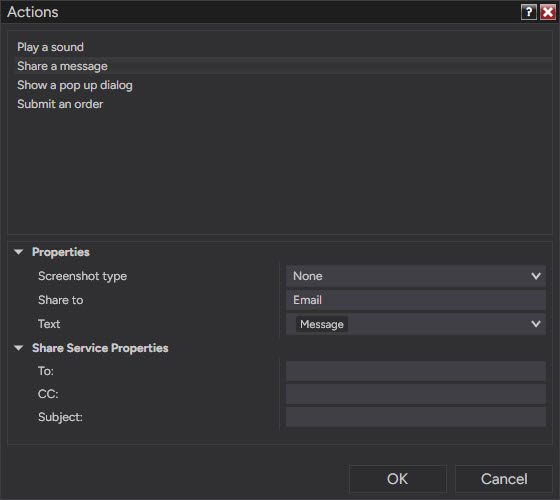
Screenshot type attaches an image of the chart, the tab or the whole window, or nothing; a chart image turns "level hit" into "level hit, and this is how price got there". Share to is the service from step 1. Text is what gets sent. It starts out holding one label, Message, which stands for the alert's own message: the Text field in the Message section of the Alerts window. The field's dropdown offers four more, Instrument, Price, Time and Priority, which are filled in when the alert fires, so instrument, price and time can arrive as one line you can read on a lock screen. Since version 8.1.7 the variables sit in the field as labels; the dropdown still shows the older @ keyword next to each one (@INSTRUMENT, @PRICE and so on).
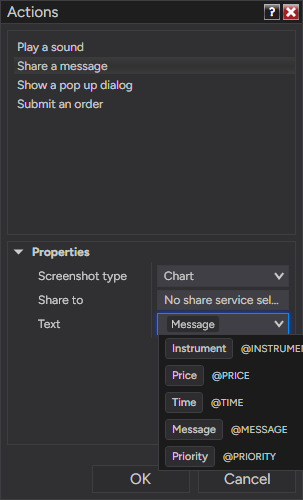
With an email service selected, three more fields appear under Share Service Properties: To:, CC: and Subject:. To: is where the alert goes; the Email address entered in step 1 is the From address, as NinjaTrader's guide describes it. Fire one test alert before relying on it. Keep the sound and pop-up actions as well, for the times you're at the desk.
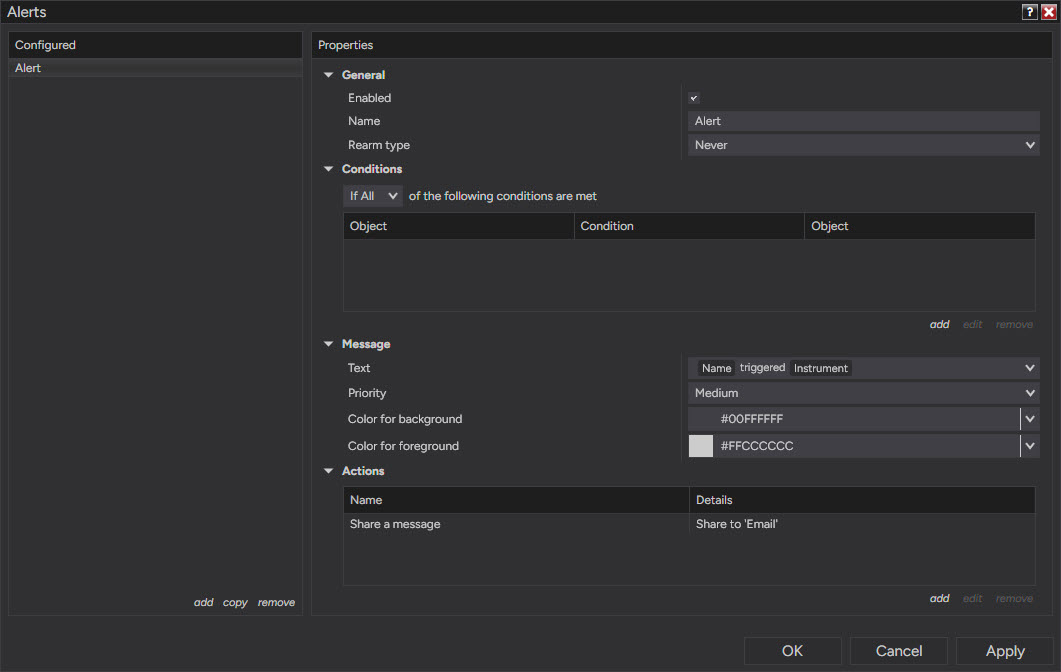
The rearm type matters more on a phone than on a desk. Never sends one message and stops. On condition reversed sends one per cross, which suits a level. On bar close and On timer rearm at the next bar close or after a set number of seconds. With a condition that stays true, such as price above the line rather than crossing it, they send a message every bar or every few seconds, and on a fast chart during a busy morning that is a phone that doesn't stop buzzing.
Step 3, optional: a text message
Text message via email sends the alert as an email to your carrier's email-to-text gateway, an address built from your phone number and the carrier's domain, and the carrier delivers it as an SMS. An email service has to exist first. The text service has its own Service name, Preconfigured settings and Default, plus Email (which email service sends it), Phone number, SMS address and MMS address.
The route is fading. AT&T shut its email-to-text gateways down on June 17, 2025. Verizon has started shutting its own down, expects to finish by March 31, 2027, and warns that messages may already be stopped by spam filtering; T-Mobile's is reported to have stopped delivering in late 2024. Many carriers outside the US have closed theirs or never had one. Where the phone already gets email, a mail notification does the same job with fewer failure points.
Step 4, optional: Telegram
NinjaTrader 8 has no built-in Telegram service at the time of writing (version 8.1.8). The Telegram side is short. Create a bot with @BotFather, which gives you a token, and send the bot one message, because a bot can't start a conversation with you. From then on a single web request to https://api.telegram.org/bot<token>/sendMessage, with your chat ID and the text, puts a message on your phone as a Telegram notification.
On the NinjaTrader side the request comes from NinjaScript, in one of two forms. A custom share service shows up in Share to next to email and works with any alert; scripts that send through a share service call NinjaScript's Share() method, which works only on real-time data and silently ignores calls made on historical bars. An indicator that sends the request itself skips the Alerts window, and it needs the same protection written in: without a check that it's running on real-time data, loading the chart sends every historical signal to your phone. Third-party Telegram add-ons exist too. Whatever the route, treat the bot token like a password: whoever has it can send messages as your bot.
What no setting fixes
Every route above starts on the PC. NinjaTrader evaluates the alert locally, in the chart tab that holds it, so a closed tab, a sleeping PC or a lost connection means no message, and nothing tells you one was missed. NinjaTrader's support staff have said on the forum that pushing desktop alerts to the NinjaTrader mobile app isn't possible.
For a level that has to be watched with the PC off, the alternative is an alert that runs on someone else's server. TradingView's alerts are server-side and can notify its phone app with TradingView closed. The costs are a second copy of the level on a second platform and, for NQ, a real-time CME data subscription on TradingView, since exchanges charge for real-time data and the chart runs delayed without it.
When the message doesn't arrive
- The test fails with an authentication error: on a manual Gmail setup, a normal password where an app password should be, or 2-Step Verification is off; on the Gmail preset, a Sign in with Google that didn't complete, so remove the service and add it again.
- The test works and the alert doesn't: the alert isn't enabled, its chart tab is closed, or the Share action points at another service.
- Port 465 in the service: switch to 587 with SSL on.
- Too many messages: the rearm type.
- Messages arrive in bursts: the phone's battery saver holding back notifications from the mail app.
My charts are range and tick charts with levels drawn by hand before the session, so level alerts are the only kind on them, and the one worth a phone notification is the level that trades while I'm away from the screen.
Educational content, not investment advice. Futures trading involves substantial risk of loss. Examples are for illustration only. Read the full Risk Disclosure.