Market Replay Data in NinjaTrader 8: Downloading, Storing and Managing Your Sessions
Replay sessions age off NinjaTrader's servers after about 90 days, so the ones worth keeping have to be saved. How downloads work, what a replay file holds that tick data doesn't, where NinjaTrader 8 stores it, how much room NQ takes, recording your own sessions, and fixing a failed download.
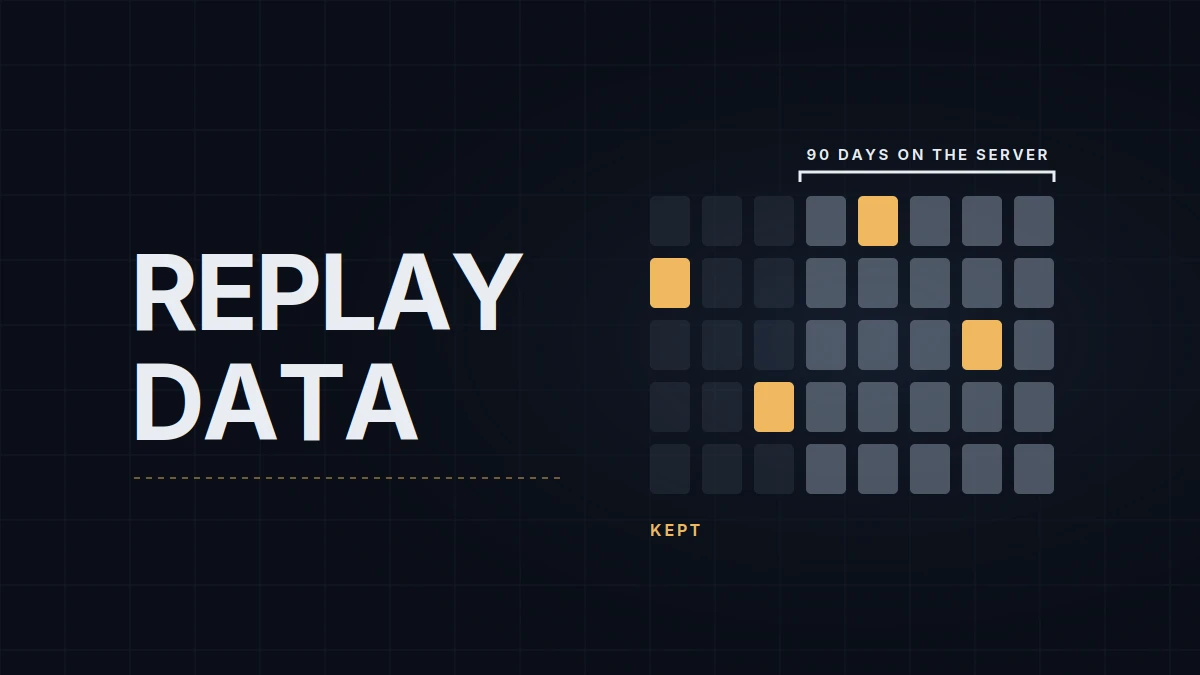
NinjaTrader's servers keep roughly the last 90 days of Market Replay data for the most traded futures. Anything older is gone from the server, so a CPI morning or a trend day worth replaying next spring has to be on your own disk before then. Practicing on replay is covered in Market Replay in NinjaTrader 8; this is the data side of it: what a replay file holds, how the NinjaTrader Market Replay download works, where the files live, how much room they take and what to do when a day doesn't arrive. The platform itself is set up in the NinjaTrader 8 chart setup.
What a replay file holds
Market Replay data is a recording of the market as the platform received it: every trade (Level 1) and every change in the order book (Level 2, the market depth), in sequence. Played back through the Playback connection, it drives charts, the SuperDOM and order entry as if the day were live.
Historical tick data is a different thing. It holds trades only, and it's what tick, volume and range charts are built from. The Playback connection can play it back too, in Historical mode, but without market depth; minute and daily data can't be played back at all. What tick data offers in exchange is reach.
| Market Replay data | Historical tick data | |
|---|---|---|
| Contents | Trades and order book changes (Level 1 and 2) | Trades only |
| Plays back with depth (SuperDOM, depth ladders) | Yes | No |
| Kept on NinjaTrader's servers | About 90 days, common futures | About 1 year |
| Folder in Documents\NinjaTrader 8\db | replay | tick |
| Files | One .nrd file per contract per day | .ncd files |
Downloading a day
Replay days come from NinjaTrader's servers, free for the common instruments, one instrument and one day at a time: Tools › Historical Data, expand Get Market Replay data, pick the instrument and the date, then Download. Three details decide whether the day arrives.
The connection. NinjaTrader staff say your normal data connection has to be up for a download from Tools › Historical Data, and the Playback connection has to be down: the Help Guide states that downloading isn't available while Playback is connected. NinjaTrader's support walkthrough takes another route that needs no live connection: disconnect from everything, select the Playback connection, download in the Historical Data window that appears, then click Continue to connect.
The contract month. Replay data is stored per contract, so a day has to be requested for the contract that was trading then. For the E-mini Nasdaq-100 (NQ) that's NQ SEP26 for a September 2026 session before the roll, NQ DEC26 after it. The wrong month returns a thin day or nothing, and roll week is where that happens most (rollover and contract months).
The recorder. The Help Guide has you switch off market recording before downloading, and NinjaTrader staff have warned that a downloaded day can overwrite one you recorded yourself.
Recording your own sessions
The recorder sits under Tools › Settings › Market data (Options before version 8.1.5): Enable market recording for playback. With it on, NinjaTrader records Level 1 for every instrument receiving live data in any window, and Level 2 only while a Level II, SuperDOM or FX Pro window is open for that instrument. Nothing is recorded while the platform is closed or disconnected. A trader who wants depth in replays of their own sessions keeps a SuperDOM for the instrument open all session, minimized if it's in the way.
Recording has one advantage over downloading. No server window applies to it, so a recorded day stays for as long as you keep the file.
Where the files live, and how much room they take
Replay files sit in Documents\NinjaTrader 8\db\replay, in one folder per contract, such as NQ 12-26 for the contract the platform lists as NQ DEC26, with one file per day inside it, named by date: 20260915.nrd for September 15, 2026. They're compressed and still large. A public download log from mid-2026 shows 184 MB for one NQ session and 289 MB for another. At about 250 MB a session, the 60-odd sessions in a 90-day window come to around 15 GB for NQ alone, and MNQ has its own order book and its own files.
That size makes the folder worth managing. The days worth keeping are the ones you'll replay on purpose: release days from the economic calendar, trend days, days you traded and want to walk through again. Copy those contract folders somewhere safe; NinjaTrader's documentation says replay files can be copied to another PC. Keep the db folder out of cloud sync as well: NinjaTrader support has advised a user who lost replay data to stop OneDrive or Dropbox from backing up the Documents folder, and files this large that change while the platform runs are a poor fit for sync anyway.
Days can be deleted from inside the platform. In Tools › Historical Data, the Loaded section has a Market Replay node that expands to each instrument and its dates; NinjaTrader's support article has users delete a faulty day there and download it again, and the Help Guide's way to delete a node in that window is right-click, Delete, or the Delete key. For a bigger cleanup, support staff's answer is to close the platform and delete the unwanted days, or the whole replay folder, from Documents\NinjaTrader 8\db\replay; NinjaTrader creates a new replay folder the next time it starts.
When a download fails
When a day doesn't arrive, work down this list:
- Check what arrived. Right-click the Playback control and choose Show Available Data. It opens the Historical Data window with the first and last day of Level 1 and Level 2 replay data on disk for each instrument.
- Little or no data. Usually the wrong contract month, or a date with no session.
- Stuck on loading. NinjaTrader support's list for a download that hangs: update the platform, add firewall, antivirus and backup-software exceptions for Documents\NinjaTrader 8 and the NinjaTrader 8 program folder, and turn off power saving on the network adapter.
- Download not available. The Playback connection is still connected; disconnect it and connect your data connection.
- Still failing. Support's reset is to close NinjaTrader, move the tick, minute, day, cache and replay folders to the desktop, restart and download again, then send the log and trace files if it still fails. Keep the moved replay folder: it holds your recordings.
Older than 90 days
A session that has aged off the replay server may still be within the year of tick data. Played back in Historical mode it gives charts and order entry without depth, enough to practice reading bars and taking entries but not to read the book. The step-by-step for the Playback connection itself is in the Market Replay guide, and why tick data can differ from what you saw live is in historical vs real-time data.
My own archive of the sessions I trade is screen recordings rather than replay files, because a recording also shows what I did and when; replay days are for practicing on sessions I didn't trade.
Educational content, not investment advice. Futures trading involves substantial risk of loss. Examples are for illustration only. Read the full Risk Disclosure.