Order Entry in NinjaTrader 8: Chart Trader, SuperDOM and Hot Keys
Chart Trader, SuperDOM or hot keys: which one for which order, how to set each up, and the five ways an order goes to the wrong price, the wrong window or the wrong account.
NinjaTrader 8 has three ways to put an order into the market from a chart workspace: Chart Trader, the SuperDOM and hot keys. They send the same order types to the same account, so the choice is about how you pick the price and how many ways there are to send the wrong thing. This post assumes the chart is already set up and the account is connected; it is about the click, the key and what happens after.
| Chart Trader | SuperDOM | Hot keys | |
|---|---|---|---|
| Picks the price by | right-click at a level on the chart | one click on the ladder | fixed action, price at market or an offset from bid/ask |
| Best at | limit and stop orders at a level you can see next to the bars | exact-tick placement, watching size at the level | market, close, reverse, breakeven, in one keystroke |
| Weak at | market orders in a hurry | keeping a wide chart on one screen | anything that needs a chosen price |
| Attaches an ATM | yes, from the panel | yes, from the ATM selector | only through the window it acts on |
Few people use one of the three alone. The usual pairs are chart plus a close hot key, or SuperDOM plus a breakeven key.
Chart Trader: three modes and the right-click menu
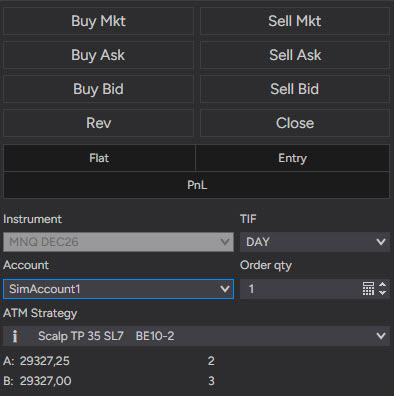
The Chart Trader button sits in the chart toolbar and offers three states. Chart Trader Off means no trading from this chart and no orders drawn on it, even orders placed elsewhere. Chart Trader opens the panel on the right side of the chart: account, instrument, quantity, time in force, the ATM strategy selector, and six entry buttons (Buy Bid, Sell Ask, Buy Ask, Sell Bid, Buy Mkt, Sell Mkt), plus Close and Rev for the open position. Chart Trader (Hidden) keeps the chart clean, draws orders and positions on it, and leaves order entry to the right-click menu and to hot keys.
The right-click menu is where a chart trader places most orders: move the cursor to a price, right-click, and pick from the order types on the menu, limit, stop market, stop limit and market-if-touched for each side. The menu only lists what the exchange would accept at that spot, so above the market you see Buy Stop and Sell Limit entries and below it the reverse. A limit sits below the market to buy and above it to sell; a stop is the reverse; MIT is a limit that becomes a market order when the price is touched. The order appears as a labeled line on the chart. To move it, click the label and then click the new price; it is click and click, not drag, and Esc backs out of a move you started by mistake. Click the quantity on the label to change size, click the red X to cancel. A stop-limit order asks for the limit offset in ticks; the offset can be preset in Chart Trader Properties (Predefined stop limit offset) so the order goes in with two clicks instead of four.
If an ATM strategy is selected in the panel, the stop and target orders are submitted the moment the entry fills, which is the whole point of the ATM post. If the selector reads None, the entry is naked.
SuperDOM: static or dynamic, and the mouse map
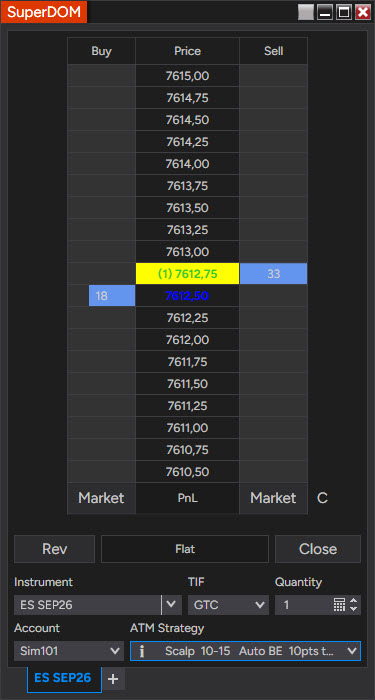
The SuperDOM is a price ladder: a Buy column, a Price column, a Sell column, the last traded price highlighted, and the size resting on the bid and the ask next to each price. From the Control Center, New opens either SuperDOM (Static) or SuperDOM (Dynamic). Dynamic keeps the inside market in a fixed row and changes the prices around it as the market moves; Static keeps the prices where they are and lets the inside market climb up and down the ladder, with a Center button to bring it back into view. Dynamic freezes while your cursor is over the ladder, and the ladder turns red to say so, which is what makes clicking on it possible at all. For placing orders at a level I still prefer Static: the row I am about to click never moves, frozen or not.
| Order | Mouse action | Where on the ladder |
|---|---|---|
| Limit | left click | below the market in Buy, above it in Sell |
| Market-if-touched | Ctrl + left click | same rows as a limit |
| Stop limit | middle click, then set the offset and confirm | above the market in Buy, below it in Sell |
| Stop market | Ctrl + middle click | same rows as a stop limit |
| Market | the Market buttons at the bottom (Shift for a limit at the ask, Ctrl for a limit at the bid) | any |
The pairs can be swapped in SuperDOM Properties (Left mouse button is MIT, Middle mouse button is stop market) if you prefer the plain button for the order you use more, and a Stop-limit offset there turns the stop limit into a single click. To move a working order, click it once and click the new price. The small X on an order cancels everything resting at that price; the large X at the top of a column cancels every order on that side, and the right-click menu has Cancel All Orders. An ATM has to be selected in the SuperDOM's own selector before the entry click; a strategy selected on the chart does not carry over to a SuperDOM order.
Hot keys: where they act and what can go wrong
Hot keys live in the Control Center under Tools, Hot Keys, in the Order Entry section, and they only work after Use order entry hot keys is ticked in Tools, Options, Trading. Recording one is a click on the action's field and a keystroke. The predefined actions cover buy and sell at market, at the bid and at the ask (the bid and ask ones go in as limit orders), Close Position, Close ATM Strategy, Reverse, a breakeven for the position or for the ATM, Cancel Last Order, and nudging the last order's price by a tick either way; a custom action adds a limit, stop-market or stop-limit order at a fixed number of ticks above or below the current bid or ask, which is as close as a hot key gets to choosing a price.
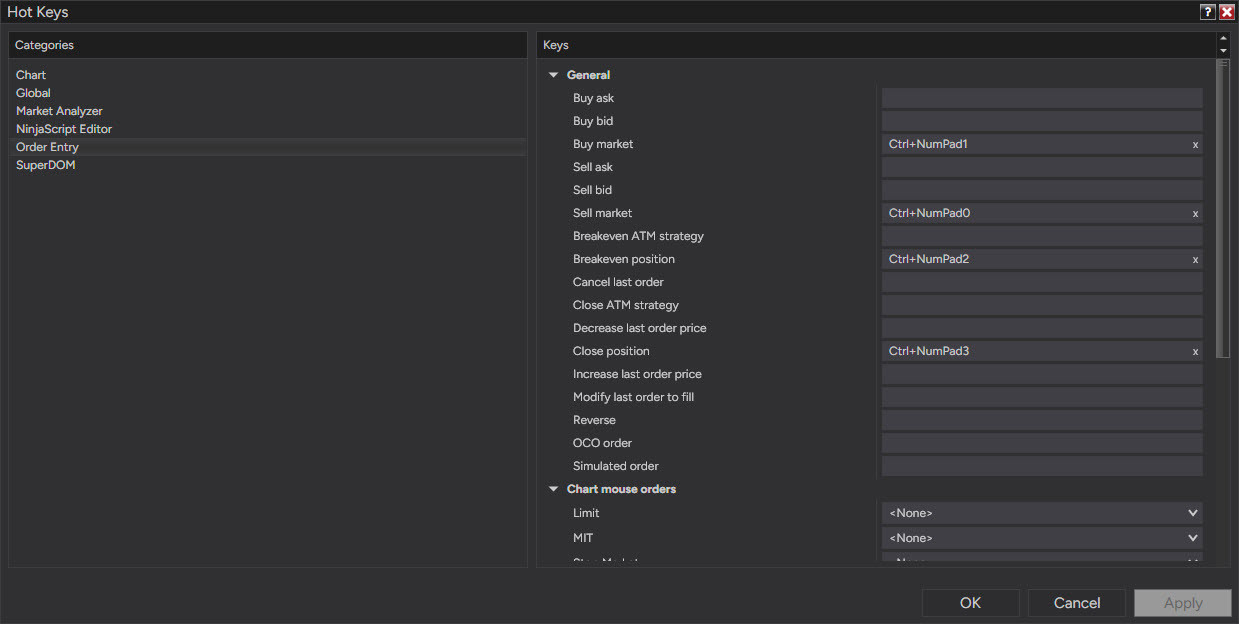
Print the list (right-click in the Hot Keys window, Print Hot Keys) and keep it next to the monitor; NinjaTrader's own help guide says the same, because Ctrl+B and Shift+B can be two different orders.
Three rules decide whether a hot key does what you meant.
It acts on the active order-entry window only. The active window is the one last clicked, and NinjaTrader marks it with a red close button in the corner (grey on every other window). With an NQ chart (E-mini Nasdaq-100) and an MNQ SuperDOM (its micro) open, the same key sends a market order to whichever of the two you touched last.
It is dead while any modal window is open. A modal window is one that has to be closed before anything else responds: a Data Series dialog, an indicator window, a confirmation prompt. Nothing happens, no error, until the dialog closes.
It repeats while held. A key held down for a second submits orders at the keyboard's repeat rate, the same way a held letter fills a text field. This is the most expensive of the three when the action is Buy Market.
The one hot key worth having on every prop account is Close Position: a single key that takes the active window flat without finding the right button on the right window. There is no predefined cancel-all action in the Order Entry list; Cancel Last Order is the nearest thing, and cancelling everything on an instrument stays a mouse job, the Close button on the panel or Cancel All Orders in the SuperDOM's right-click menu.
Five ways an order goes wrong
Wrong account. Chart Trader and SuperDOM each have their own account field. After a session in Sim101 or a Market Replay, the field stays on the sim account until it is changed, and a prop account connected through Tradovate can sit next to it in the same list. First order of the day: read the field.
No ATM. Market buttons and market hot keys fire immediately, and if the selector reads None the position has no stop until you place one by hand. A naked position on a trailing-drawdown account for the ten seconds it takes to find the stop price is a real cost.
Wrong window. Rule 1 above. Two instruments, one key.
Stop limit with no room. A protective stop entered as stop-limit with a zero offset can be jumped on a fast NQ move and left unfilled as the market runs past it. For the protective order, stop market is the safer type; stop limit belongs to entries, where an unfilled order costs a missed trade instead of an open loss.
Confirmations off too early. Tools, Options, Trading has an option to confirm order placement. It slows every order by one click, which is why experienced users turn it off, and it catches the wrong-account and wrong-window errors, which is why it belongs on for the first week on any new account.
My own setup is entries from the chart with an ATM attached, and the SuperDOM open for the size at the level rather than for the click. Whatever the combination, the two checks that matter happen before the first order, not during it: which window is active, and which account is in the field.
Educational content, not investment advice. Futures trading involves substantial risk of loss. Examples are for illustration only. Read the full Risk Disclosure.