Rithmic in NinjaTrader 8: Connecting a Prop Account and What Differs From Tradovate
A Rithmic prop account reaches NinjaTrader 8 through its own connection type, and most failed first logins trace back to two steps outside NinjaTrader. The setup in order, running Rithmic's own app next to it, what changes against the Tradovate route, and the error messages with their fixes.
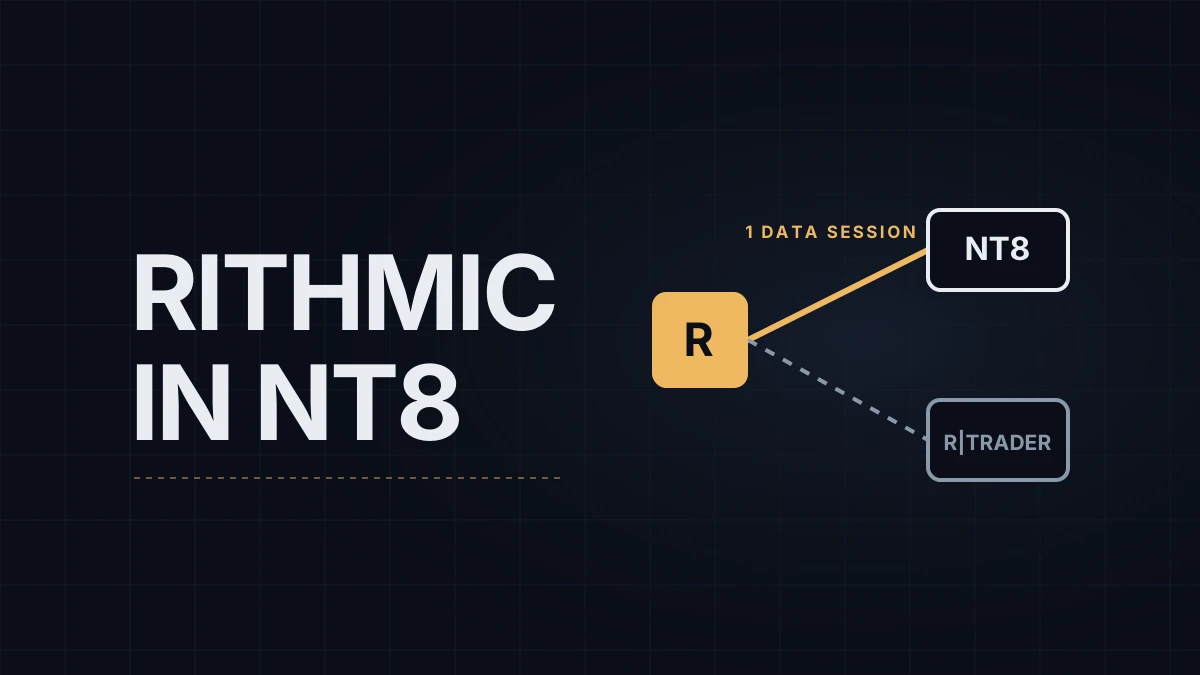
A Rithmic prop account connects to NinjaTrader 8 through a connection type called Rithmic for NinjaTrader Brokerage. The NinjaTrader part takes a few minutes; most failed first logins come from two steps that happen before it, in Rithmic's own R|Trader Pro. The steps below assume NinjaTrader 8 is installed and a chart is set up as in NinjaTrader 8 chart setup.
At the time of writing, NinjaTrader on Rithmic is mainly an Apex Trader Funding and Bulenox setup, and Elite Trader Funding and Take Profit Trader offer it too. Lucid, Tradeify and MyFundedFutures connect NinjaTrader through the Tradovate route, which Lucid lists as its CQG route, set up as in the Lucid and Tradovate guide. Rithmic vs Tradovate data feeds covers what the choice changes on the chart.
Before NinjaTrader: one login in R|Trader Pro
- Install R|Trader Pro and log in once with the username and password your firm sent, choosing the firm's system (Apex's guide uses APEX) and the gateway the firm recommends; Apex's guide says to pick the area closest to you.
- Sign the market data agreements and set your status. On the first login Rithmic asks you to accept the exchange agreements and to declare whether you're a professional or non-professional data user. Most individual traders are non-professional; the status is defined by the exchanges, not by the firm. Until this is done, NinjaTrader may fail to connect or show no live data.
In NinjaTrader 8
- Check that Connections › Configure exists. It sits in the Control Center under Connections. If it's missing, multi-provider mode is off: turn it on in the platform options, restart NinjaTrader, and the menu appears.
- Add the connection. In Configure, select Rithmic for NinjaTrader Brokerage in the list of available connections and click add. If the list also shows a plain "Rithmic" entry, leave it; prop accounts use the Brokerage one.
- Fill in the fields. A connection name with letters and numbers only, the Rithmic username and password, and the System your firm specifies. Leave the plug-in option for market data unticked unless you follow the plug-in setup in the next section. "Connect on start up" is optional, but with a wrong password saved it can hold up the platform at launch, so tick it only after the first successful connection.
- Connect. Choose the new connection under Connections. The account should appear in the Accounts tab of the Control Center within about half a minute.
- Pick the account on the chart. Select it in Chart Trader or the order entry window before the first order. A Sim101 left selected is the most common reason a first "trade" never reaches the prop account.
If the Rithmic account still doesn't show up, Apex's guide points to Help › About in NinjaTrader: the license line should mention an evaluation on Rithmic, and if it doesn't, NinjaTrader support has to enable it.
Running R|Trader Pro next to NinjaTrader
By default Rithmic allows one market data session per username, and NinjaTrader counts as that session. The firms document two ways around it:
- Plug-in mode. Start R|Trader Pro first with Allow Plugins switched on, then tick the plug-in option in NinjaTrader's connection. NinjaTrader takes its data through R|Trader Pro, and both have to run on the same computer.
- R|Trader Pro without market data (Apex's guide). Log in to R|Trader Pro with market data switched off, so it only shows the account and orders. A second full data session is a paid add-on.
Mixing the two is what produces the "session count" disconnects in the table below. Pick the method your firm documents and stay with it.
What differs from the Tradovate route
NinjaTrader's prop-firm guide says only one Rithmic-based connection can be active at once, so two Rithmic accounts at two firms can't run side by side in the same NinjaTrader 8. A Rithmic connection and a Tradovate-route connection can run together, and the platform options let you choose which connection supplies market data.
Brackets are where the two routes differ in practice. On both, NinjaTrader handles OCO, the link that cancels the target when the stop fills, on the local computer. The difference is server-side ATM strategies, a beta feature that keeps ATM stop and target management on NinjaTrader's servers: it works only on the NinjaTrader (Tradovate) connection and only with multi-provider mode off. A Rithmic account needs multi-provider mode, so it never gets this option; a Tradovate-route trader gets it only if the firm's setup doesn't require multi-provider, and some, Apex among them, do. On Rithmic, auto-breakeven, auto-trail and OCO all depend on NinjaTrader staying connected. Apex's guide spells out the consequence: if the connection drops and one leg of a bracket fills, the other leg isn't cancelled. The stop and target already sent keep working on Rithmic's side, but they no longer know about each other. ATM strategies in NinjaTrader 8 explains the bracket logic itself.
Charts behave the same way on both routes: live bars are built from ticks as they arrive, while bars rebuilt after a restart come from downloaded historical data, which is one reason live and reloaded charts can differ.
My own accounts run on the Tradovate route, so the steps above follow the firms' guides and NinjaTrader's documentation; the dialog differs slightly between builds, which is why the steps name fields rather than screen positions.
When it won't connect
| Message | Usual cause | Fix |
|---|---|---|
| Logon failed, with "check your account connection parameters" | Wrong username, password or System | Delete the connection and add it again with the System from your firm's guide |
| bad input (Logon failed) | An empty credential field | Fill in username and password |
| already has a running connection | Two Rithmic connections configured or open | Keep one Rithmic connection |
| session count exceeded, or disconnect enforced by broker | R|Trader Pro and NinjaTrader both taking market data | Turn market data off in R|Trader Pro and untick plug-in mode in NinjaTrader, or set up plug-in mode fully as your firm documents |
| Instruments not subscribed for real-time data | A warning, not an error: NinjaTrader has preloaded instruments that aren't in the account's data package | Nothing to fix for instruments you don't trade; they can't be traded on the account and their data is delayed |
| Rejected at RMS | The account is set to liquidate-only | In R|Trader Pro, right-click the account and switch off liquidate-only, or ask the firm |
NinjaTrader 8.1.8.4, released on October 19, 2026, fixed a case where prop accounts on the NinjaTrader connection, the Tradovate route, could fail with an "unsupported older version" message. It doesn't concern the Rithmic connection, but if a correct setup still won't connect, running the latest build is a cheap first step before a support ticket.
Educational content, not investment advice. Futures trading involves substantial risk of loss. Examples are for illustration only. Read the full Risk Disclosure.