NinjaTrader 8 ATM Stop Strategies: Auto Breakeven, Auto Trail and Chase Settings
The stop strategy is the part of a NinjaTrader 8 ATM that moves the stop after the fill. Every field of Auto Breakeven and Auto Trail with a worked MNQ example, the simulated stop and volume trigger, where Auto Chase belongs, how to save it so edits stick, and the troubleshooting list.
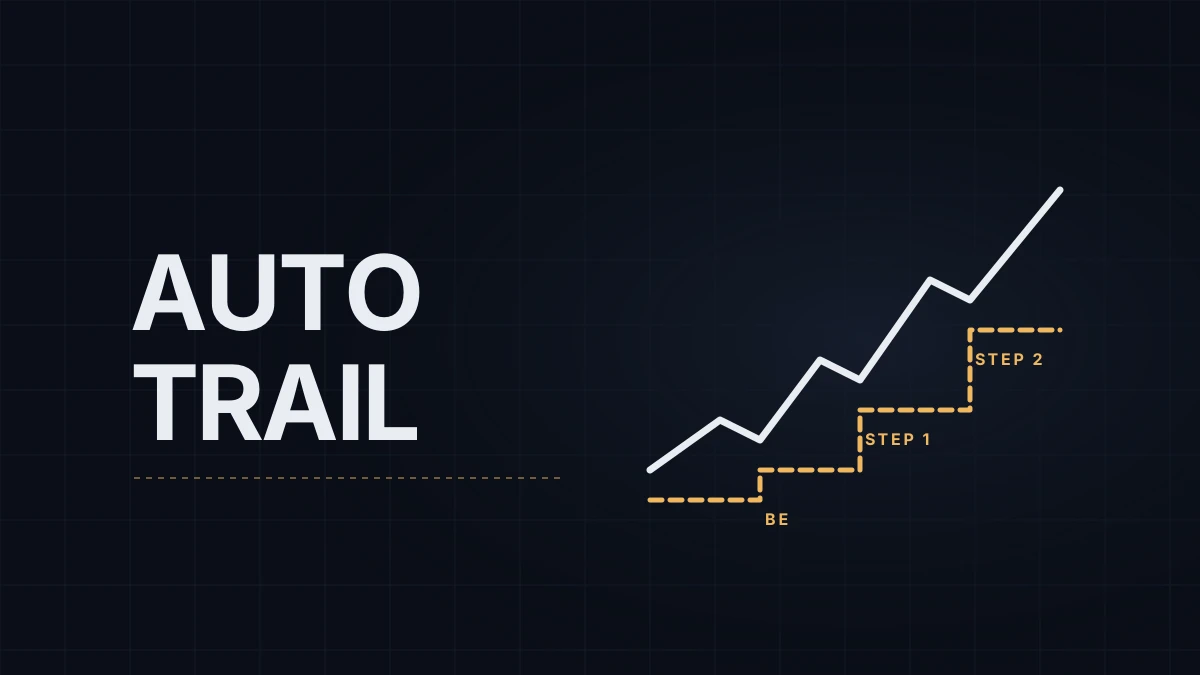
A stop strategy is the part of a NinjaTrader 8 ATM strategy that moves the stop loss after the entry fills: Auto Breakeven, Auto Trail and the volume-triggered simulated stop. This post goes through the settings field by field. What an ATM strategy is, and the bracket it builds around an entry, is in the NinjaTrader 8 ATM strategy guide, and the platform setup in NinjaTrader 8 chart setup. The examples use MNQ, the Micro E-mini Nasdaq-100, where one point is four ticks.
1. Open the Stop Strategy window
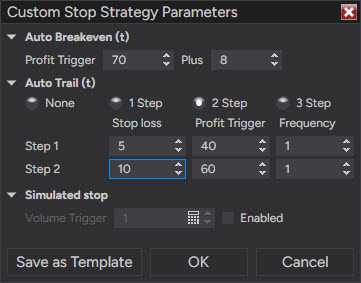
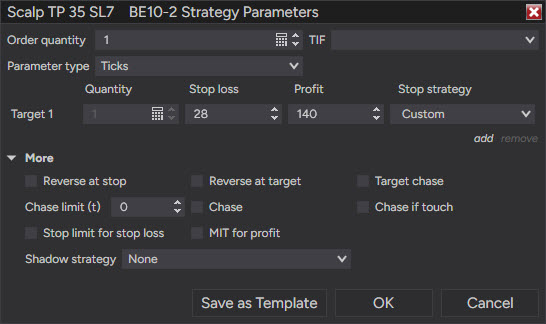
In Chart Trader or the SuperDOM, set the ATM Strategy dropdown to <Custom>. Each target row in the ATM parameters has its own Stop Strategy dropdown with three kinds of value: <None>, <Custom>, or a saved stop strategy template. Choosing <Custom> opens the Stop Strategy window.
Two things to know before typing numbers. The ATM's parameter type can be set to currency, percent, pips, price or ticks, but a stop strategy can't use currency or price: with either of those selected it switches to ticks, shown by a (t) next to the Auto Breakeven and Auto Trail fields. Every example here is in ticks. And because each target has its own dropdown, an ATM with two targets has two stops that can follow different rules. To have them move together, pick the same stop strategy for both.
2. Auto Breakeven
Two fields. Profit trigger is how far the trade must move in your favor before the stop moves. Plus is how many ticks beyond the average entry price the stop lands. With Profit trigger 40 and Plus 4 on a long MNQ, the stop moves to entry +1 point once price is 10 points up.
Whether a breakeven rule earns its place is a separate question, worked through with a journal in moving the stop to breakeven.
3. Auto Trail
Auto Trail has up to three steps, each with three fields:
- Profit trigger: the open profit at which this step takes over.
- Stop loss: how far behind price the stop sits when the step activates.
- Frequency: how many ticks price has to move further before the stop moves again, by the same amount.
A two-step example on a long MNQ, together with the breakeven above:
| Profit trigger | Stop loss / Plus | Frequency | In points | |
|---|---|---|---|---|
| Auto Breakeven | 40 | Plus 4 | at +10, stop to +1 | |
| Trail step 1 | 80 | 60 | 8 | at +20, stop to +5; then up 2 for every 2 |
| Trail step 2 | 160 | 40 | 4 | at +40, stop to +30; then up 1 for every 1 |
At +40 the first step alone would have the stop at +25. The second step takes over and pulls it to +30, a tighter trail for the stretch where the trade has already proven itself. NinjaTrader only ever moves a stop toward the market, never back, so a looser later step can't widen it.
The Help Guide adds one combination rule: the Auto Trail profit trigger has to be higher than the Auto Breakeven trigger. NinjaTrader also warns that the two compete for the same stop when their triggers aren't set at different levels. Auto Trail is the fixed-distance kind of trail, in steps; how it compares with ATR or structure-based trails is in trailing stops explained.
4. Simulated stop and volume trigger
Ticking Enabled under Simulated stop keeps the stop on your PC instead of sending it to the broker. It triggers when price trades at the stop and the Volume Trigger condition is met: for a sell stop, when the size resting on the bid at the stop price falls below the number you set. The idea is to avoid being taken out by a single print at the level while size is still defending it. The cost is that until it triggers, the order exists only inside NinjaTrader, so a crash or a lost connection leaves the position with no stop at the broker.
5. Auto Chase belongs to targets and entries
Chase settings sit in the ATM's advanced options ("More"), not in the stop strategy, and they never touch the stop. Target Chase works on the profit target: if price touches the target without filling it and pulls back, the limit follows the market, up to the Chase limit. Chase moves a limit entry toward the market as price moves away from it, and Chase if touch waits until price has touched the entry's price first. Chasing trades a worse price for a fill, so it's a setting to switch on deliberately rather than by default.
6. Save both templates
Type a name in the Stop Strategy window and save it as a template, then select it in the ATM's Stop Strategy dropdown and save the ATM itself as a template too. Both have to be saved, the stop strategy first and then the ATM, for an edit to persist. If an edited breakeven still fires with the old numbers, check that first.
7. Changing it on a working order
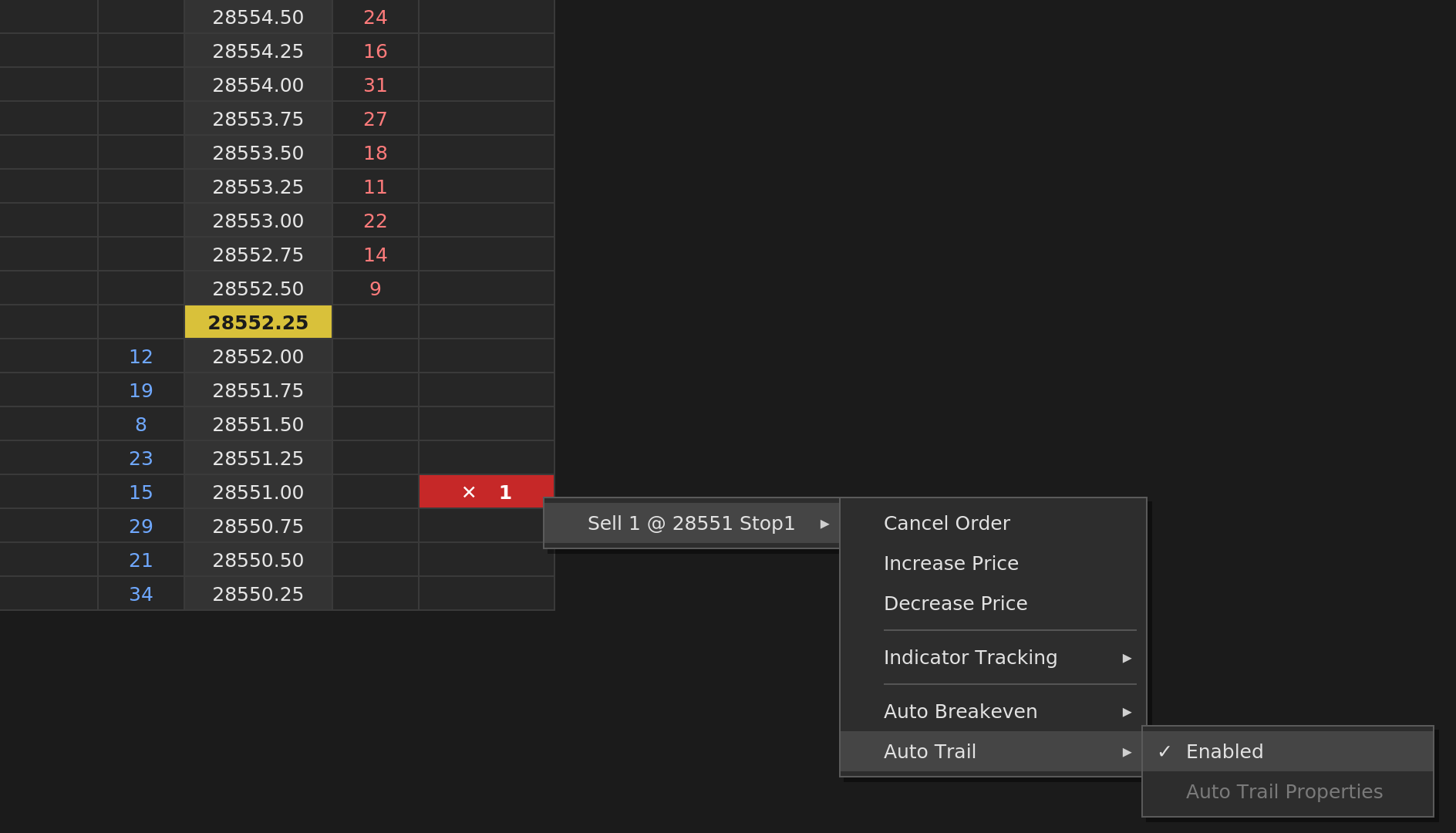
Right-click a working stop in the price ladder or on the chart to reach its Auto Breakeven and Auto Trail submenus, where each can be switched on or off. Their properties can be edited only while they're switched off. The Help Guide doesn't say what happens if you move the stop yourself while Auto Trail is still on. A 2024 answer from NinjaTrader support says the trail pauses until price covers the distance you moved the stop closer, then carries on, so switching it off first is the safe way to take full manual control.
8. Where it runs
The stop order itself rests at the broker, unless it's a simulated stop, but the decision to move it is made by NinjaTrader on your PC, and the Help Guide states that the platform has to be connected for an ATM's functions to work. If NinjaTrader drops, the trail and the breakeven freeze wherever they were; NinjaTrader disconnects covers what survives and what to do in the first minute. Server-side ATMs, a beta option available only on the connection called NinjaTrader with Multi-provider mode off, move this logic to NinjaTrader's servers, with limits: Auto Trail has one step instead of three, there's no volume trigger or simulated stop, and the stop strategy can't be switched on or off on a working order.
My ATM carries a target and an Auto Trail: on a range day the target usually does the work, and when a move has momentum the trail takes over first. The initial stop is typed for each trade rather than stored in the template.
Troubleshooting
- The stop moved earlier than expected. Triggers are counted in ticks. On MNQ, 40 means 10 points, not 40.
- The stop didn't move when expected. Triggers are measured from the average entry price, which shifts after an add to the position.
- Breakeven and trail fight over the stop. The trail's profit trigger is equal to or below the breakeven trigger. Raise it.
- Old numbers come back after an edit. One of the two templates wasn't saved.
- The second target's stop doesn't follow. Its own Stop Strategy dropdown is still on
<None>. - Everything stopped adjusting at once. Look at the connection icon in the Control Center before anything else.
Educational content, not investment advice. Futures trading involves substantial risk of loss. Examples are for illustration only. Read the full Risk Disclosure.