Backing Up and Moving NinjaTrader 8 to a New PC: Workspaces, Templates, Data and Licenses
One backup file moves workspaces, templates, NinjaScript and settings to a new computer in a few minutes. Connection passwords and add-ons licensed to your old computer don't come along, because they're tied to the machine ID. The steps, what to tick, and what to redo before the first session.
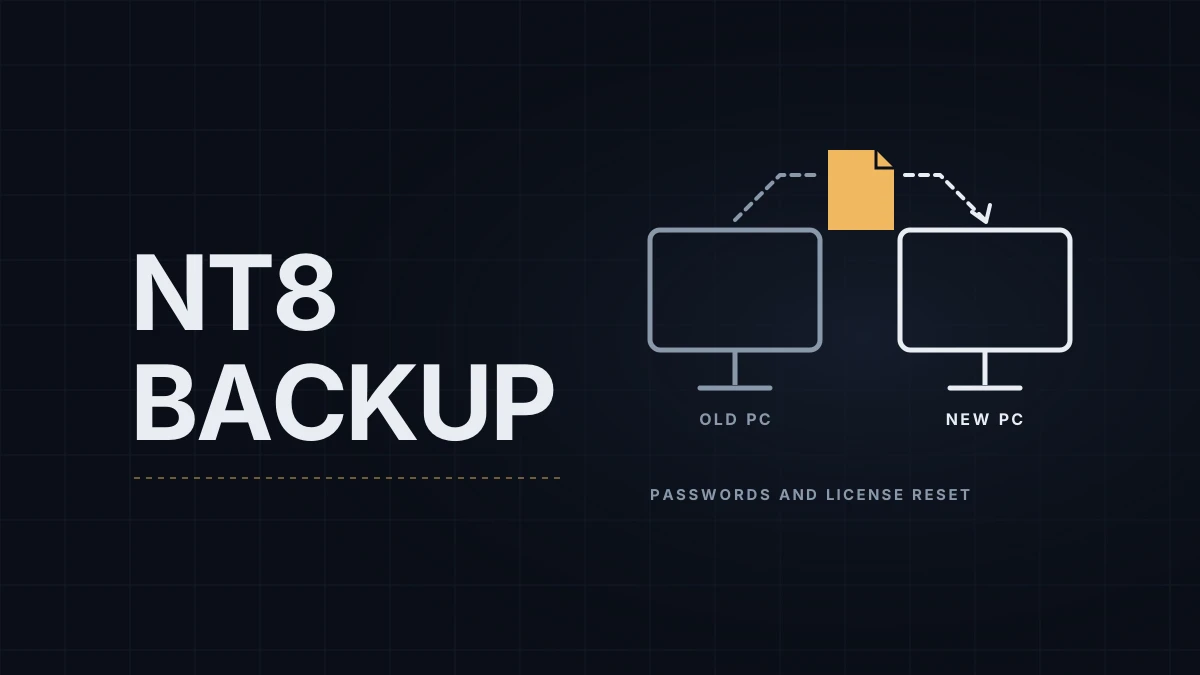
A NinjaTrader backup is a single file built from the Control Center that carries workspaces, templates, NinjaScript files and settings from one installation to another. It's the clean way to move NinjaTrader 8 (NT8) to a new computer or to come back after a Windows reinstall, and it takes a few minutes. A handful of things don't survive the move whatever you tick, and those are the ones that cost a morning if you find out at 9:25 AM. If the platform is new to you, start with NinjaTrader 8 chart setup.
What the backup can hold
| Item | What it contains | Include when moving? |
|---|---|---|
| Configuration files | Account connection settings and other options (license keys on older versions) | Depends, see the restore section |
| Database (historical trade data) | Your executions, used by Trade Performance reports | Yes, if you want old trade reports |
| Historical chart data | Bars and ticks recorded, downloaded or imported | Usually no, the provider can supply it again |
| Log and trace files | Diagnostics for NinjaTrader support | No |
| Market Replay data | Recorded Level 1 and Level 2 data for Playback | Data you recorded yourself, and downloaded days older than about 90 days |
| NinjaScript files | Indicators, strategies, add-ons, third-party ones included | Yes |
| Templates | Chart, strategy, Market Analyzer, ATM and SuperDOM templates | Yes |
| Workspaces | Window layouts | Yes |
Market Replay data for the popular futures contracts can be downloaded again from NinjaTrader's servers, see downloading Market Replay data. Years of tick history can turn a backup into a multi-gigabyte file, which is the main reason to leave chart data out.
Export the backup on the old PC
- Disconnect every connection (Connections menu in the Control Center).
- Open Tools › Export › Backup File...
- Tick the items you want, then click Export.
- Pick a location and a file name and click Backup. By default the file goes to
Documents\NinjaTrader 8 Backupand is named with today's date. - Copy the file off the machine: a USB drive, cloud storage or an email to yourself.
The same dialog offers "Please remind me to back up my files every..." with a weekday or the first day of the month. It's a pop-up reminder on that day, not an automatic backup, so the backup still happens only when you click through it.
Restore on the new PC
- Install the current NinjaTrader 8 release on the new machine and open it without connecting to anything.
- Open Tools › Import › Backup File... and select the file.
- Choose what to restore (Configuration is discussed below), then confirm.
- NinjaTrader closes itself when the restore finishes, so the restored workspaces aren't overwritten by the open ones. Start it again.
What resets anyway: the machine ID
NinjaTrader identifies a computer by its machine ID, shown under Control Center › Help › About. When the ID changes, the platform removes sensitive data: the usernames and passwords saved in your account connections are cleared (on the old 8.0 release the license key went too). A new PC always has a new ID, so before the first session you'll need to:
- re-enter the login for every account connection, prop accounts included (Tradovate for Lucid, Rithmic);
- sign in with your NinjaTrader username. On NT 8.1 and later your plan sits on the username, so there's no license key to re-enter, and the same login opens the platform on as many computers as you like; your broker or prop firm may still allow only one live connection at a time. What a prop account needs is covered in NinjaTrader licenses on a prop account;
- send the new machine ID to every vendor whose add-on is licensed to the old one. Until they re-license it, their indicators won't load and chart templates built on them open with gaps.
That leaves the Configuration choice. NinjaTrader support's own instructions for moving to a second computer uncheck Configuration at the restore step. You start with default options and connections and set them up again by hand, with nothing stale carried over. Restoring it keeps your options and settings files (hotkeys live in UI.xml inside them), but the connection passwords are wiped regardless, because of the machine ID. If you choose to restore it, check each connection and Tools › Settings (called Options before version 8.1.5) before trusting the result.
Before the first live session
Open the workspace and check that every window and instrument link came back. Load each chart template and look for empty panels where an indicator failed to load. Then connect, place and cancel a Sim101 order with your ATM template, and confirm the account list shows every account you trade.
One habit makes the next move painless: take a backup after any change you'd hate to rebuild, not only before replacing a PC, and keep the last few files. One thing to avoid: syncing the live Documents\NinjaTrader 8 folder through OneDrive or a similar service. NinjaTrader support advises keeping OneDrive away from that folder while the platform runs, and users who shared it between computers report repeated machine ID changes. Sync the backup files instead.
My own NT8 setup is close to bare, a Range 30 chart for entries and a tick chart for context with the levels drawn, so what I'd hate to rebuild is short: the workspace, the chart templates and the indicators that draw the levels. That's still worth the two minutes.
Educational content, not investment advice. Futures trading involves substantial risk of loss. Examples are for illustration only. Read the full Risk Disclosure.