Running a NinjaTrader 8 Strategy Live: Start Behavior, Position Sync and What Happens on a Disconnect
A NinjaTrader 8 strategy keeps its own position and the account keeps another. How Start behavior reconciles the two, how to enable a strategy from the Strategies tab, what happens to its orders when the connection drops, and why a restart leaves the strategy switched off.
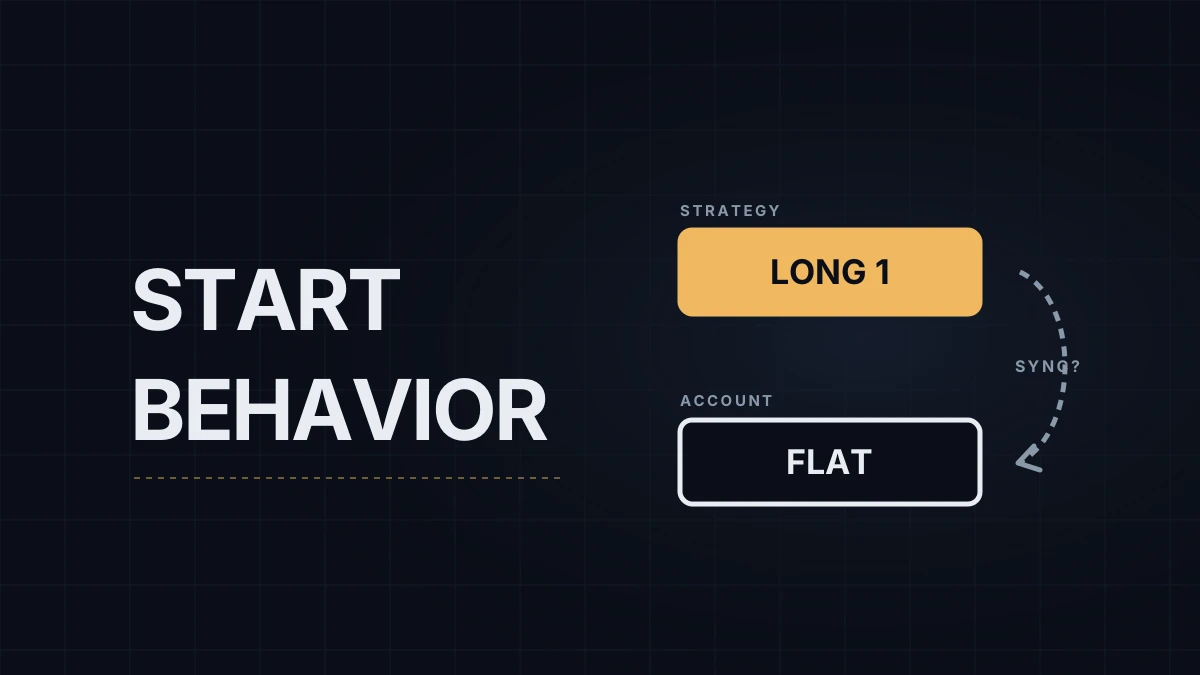
A NinjaTrader 8 strategy running live tracks two positions. The strategy position is virtual: the position the strategy's own entries and exits add up to, including the ones it calculated on historical bars before you switched it on. The account position is what your broker holds. Start a strategy mid-session and it may decide, from the loaded history, that it's long 1 contract while the account is flat. If nothing reconciles the two, its next exit sells 1 contract and the account ends up short. Start behavior, the Sync column and the connection-loss settings all exist to stop that from happening. If you haven't tested the strategy yet, the Strategy Analyzer comes first; the chart and platform basics are in the NinjaTrader 8 chart setup.
Start behavior: five options
Start behavior is a property you set when you add the strategy. It runs once each time the strategy is enabled, and not while it's running.
| Option | What happens at start | Fits when |
|---|---|---|
| Wait until flat (default) | Cancels the strategy's old orders, trades virtually until its historical position is flat, then goes live. Assumes the account is flat. | The account is flat and you're happy to wait for the strategy's next flat moment |
| Wait until flat, synchronize account | Same, but if the account isn't flat it sends a market order to flatten it first | You want a clean start whatever the account holds |
| Immediately submit | Goes live at once with its historical position. Live orders that match its calculated orders exactly (action, type, quantity, prices) are taken over; the rest are cancelled. Assumes the account already matches. | Restarting a strategy whose position and orders are still at the broker |
| Immediately submit, synchronize account | Same, then sends a market order to make the account match the strategy | You trust the strategy's history more than the account |
| Adopt account position | Ignores its historical position and starts from what the account holds | Only appears if the developer built the strategy for it; one per account and instrument, with no outside working orders |
The two "synchronize" options can send a market order the moment you enable the strategy, so read the account position before choosing them. And Start behavior is a one-time check: a manual trade on the same account and instrument afterwards, or a second strategy on it, can put the two positions out of step again.
Enabling it from the Strategies tab
- In the Control Center, open the Strategies tab, right-click and choose New Strategy.
- Pick the strategy, then set the account, instrument, data series, parameters and Start behavior.
- Tick the Enabled box.
The tab has a Position column (the strategy position) and an Acct. Position column (everything the account holds, including trades the strategy didn't make), and a Sync column that's true when they match. The strategy's name turns green when it's running, orange (the help guide's note on the Sync column calls it yellow) while it waits to be flat under "Wait until flat", and black when it's disabled. A strategy started from this tab runs without a chart, and its orders are live, so stop the strategy rather than cancelling its orders by hand.
Three properties matter more live than in a backtest:
- Exit on close is on by default and closes the strategy's position 30 seconds before the session ends in the strategy's trading hours template, in real time only. With NQ's default electronic-hours template that's 4:59:30 PM ET, later than the flat-by time at most prop firms (4:45 PM ET at Lucid and Tradeify, at the time of writing), so a prop account needs its own exit time in the code or a template that ends earlier. Trading hours templates covers how to set one.
- Entries per direction caps how many entries the strategy can stack in one direction; the default is 1.
- Realtime error handling in code defaults to stopping the strategy, cancelling its orders and closing its position when an order is rejected, which is usually what you want on a funded account.
When the connection drops
What a strategy does on a disconnect is set under Tools › Settings › Strategies (called Options before NinjaTrader 8.1.5), and a strategy's own code can override it:
- Keep running logs the disconnect and carries on as if nothing happened once the connection is back.
- Recalculate, the default, stops the strategy if the data connection stays down longer than the delay (10 seconds by default), or if it tries to send an order while the order connection is down, and after a stable reconnect recalculates its position from history and restarts it.
- Stop strategy stops it after the delay and does nothing on reconnect.
The orders themselves follow one rule: what sits at the broker keeps working, and what runs on your PC stops.
| During a disconnect | Keeps working? |
|---|---|
| Stop and limit orders already accepted by the broker | Yes, they're at the broker or exchange |
| Simulated stops, which NinjaTrader holds on your PC | No |
| ATM auto-breakeven and auto-trail | No, they pause until the connection returns, unless server-side ATMs (beta, NinjaTrader connection only) are enabled |
| The strategy's logic | No new decisions until it reconnects |
Recalculate has a known trap. NinjaTrader's support staff describe a case where an order filled while the platform was disconnected; on reconnect NinjaTrader registered the fill, but the restarted strategy recalculated from history and placed a new order anyway. With Keep running the fill would have updated the strategy position instead. Neither setting is safe in every case, which is why the broker's order desk phone number belongs next to the screen. What a disconnect does to a manual position is covered in NinjaTrader disconnects.
After a restart
Strategies don't switch themselves back on when NinjaTrader restarts. They're saved with the workspace, but you re-enable each one by hand, and Start behavior applies again at that moment. If the position and its protective orders are still at the broker, Immediately submit lets the strategy take over orders that match exactly; anything that doesn't match is cancelled and replaced with what the strategy calculates, so compare the Acct. Position column with what you expect before ticking Enabled.
Before any of this touches a funded account, check that your firm allows automated strategies at all; several don't, as automated trading on a prop account lists. And Market Replay is the cheapest place to watch a strategy start, stop and restart: NinjaTrader Market Replay shows how to set it up. The indicator side of NinjaScript starts in writing a first indicator.
My own rule for anything automated is the one I use for manual size: a stop sitting at the broker from the first second, and a second device ready if the main machine or the internet goes down.
Educational content, not investment advice. Futures trading involves substantial risk of loss. Examples are for illustration only. Read the full Risk Disclosure.