Exporting Trades From NinjaTrader 8 to a Journal: Trade Performance, Executions and CSV
One window and one right-click get your trades out of NinjaTrader 8. Choosing between the Executions and Trades views, and knowing what the file leaves out or gets wrong, decides whether the journal built on it is right. Steps, both column sets and the four checks.
To export trades from NinjaTrader 8 you need one window and one right-click: Trade Performance, the Executions or Trades view, Generate, then Export from the grid. That part takes a minute. What takes thought is which of the two views to export and what the file quietly gets wrong, because a journal built on a bad export repeats the error in every statistic it computes. (If NinjaTrader 8 is new to you, the Tools topic starts with chart setup; this is its last post.)
Executions or Trades
The two views describe the same session at different levels. An execution is one fill: every time part of an order is filled, NinjaTrader writes a row with the price, quantity and time. A trade is NinjaTrader's pairing of an entry with an exit into a round turn, with profit, commission and excursion columns computed per pair.
| Executions | Trades | |
|---|---|---|
| One row is | one fill | one entry matched to one exit, per quantity |
| Two MNQ in, out at two targets | 1–2 entry rows + 2 exit rows | 2 trades |
| P&L per row | no (price, quantity, commission) | yes, plus cumulative net profit |
| MAE / MFE | no | yes, but wrong on live accounts |
| Suits | journal apps that rebuild positions from fills; checking fills against a firm's statement | spreadsheet journals; a quick look at the day |
If your journal is an app with a NinjaTrader importer, export whichever view it asks for, which is usually Executions, since fills are the raw data and the app does its own pairing. If your journal is a spreadsheet, Trades saves you pairing fills by hand, with one catch: the position you thought of as one trade may arrive as two or three rows, one per target, and has to be merged back for anything measured in R (profit or loss divided by planned risk).
The steps
- In the Control Center, open New › Trade Performance.
- Open the filter panel (the funnel icon) and tick the account or accounts (a prop account connected through Tradovate or Rithmic shows under its own account name), narrow to an instrument if you want one, and set the From and To dates.
- Set the Display to Executions or Trades. For the Trades view, pick the unit you journal in (currency, points or ticks) before exporting; the file keeps what the grid shows.
- Click Generate.
- Right-click inside the grid, choose Export..., save as CSV (Excel is also offered), and put the date range in the filename, such as nt8-executions-2026-09-21_2026-09-25.csv.
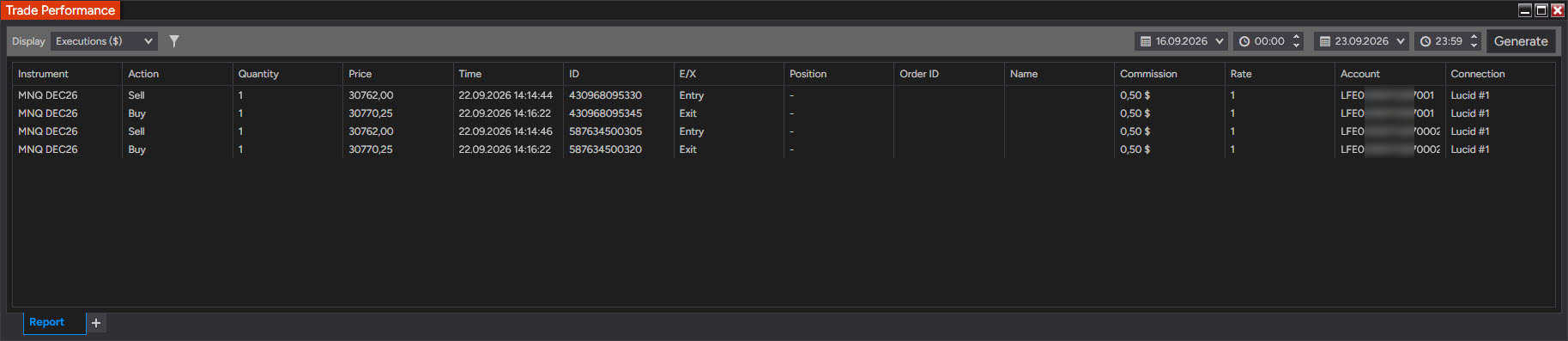
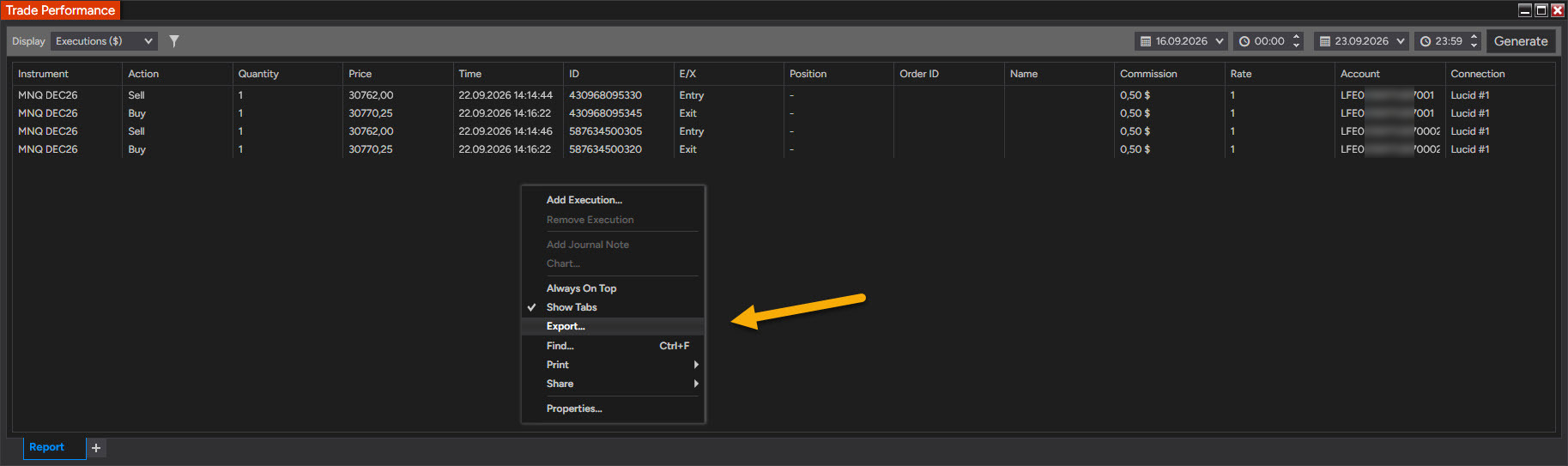
Columns you don't want can be removed before exporting from the same right-click menu (Properties). An Executions export from a default layout has 14: Instrument, Action, Quantity, Price, Time, ID, E/X (entry or exit), Position, Order ID, Name, Commission, Rate, Account and Connection. Journal importers are often built against exactly that list, so strip columns only for a spreadsheet.
For a single day there's a shorter route: the Executions tab of the Control Center has the same right-click Export. It shows the current day's fills, so it suits an end-of-session habit and not a backlog.
Four things to check in the file
Time zone. Timestamps are written in the time zone NinjaTrader is set to (Tools › Settings › General, Options in older builds), which by default is the computer's. A European trader's file is in CEST; a journal that assumes Eastern Time moves every trade by six hours, and by five in the week when the European and US clocks change on different dates, which the daylight saving post covers. Set the importer's time zone once and check it again in late October and late March.
Dates and decimals. The export follows the Windows regional format, not a NinjaTrader setting. On a European locale that can mean day-first dates, a decimal comma (a fill at 29,384.25 written as 29384,25), semicolons instead of commas between the columns, and in one case documented on NinjaTrader's forum, dates with the separators missing entirely. An importer that expects US formats reads those rows wrong or skips them. Either tell the importer which format to expect or switch the Windows short-date format to yyyy-MM-dd before exporting.
Fills NinjaTrader never saw. The report is built from NinjaTrader's local database, so it contains what that installation received. Trades placed from a broker's web or phone app, or on days the platform wasn't connected, may be missing, and a reinstall without a backup of the Documents\NinjaTrader 8 folder loses the history. The firm's or broker's statement is the complete record; compare the trade count against it once a week. A missing fill can be added by hand (right-click in the Executions display › Add Execution...) if the journal should match.
MAE and MFE. The Trades export includes maximum adverse and maximum favorable excursion, how far each trade went against you and in your favor, and on live accounts NinjaTrader has been reporting them wrong. The MAE/MFE export post shows how to spot the bug in your own file; until it's fixed, take those two numbers from the chart or from a session recording.
Commission is worth one look as well: NinjaTrader fills that column from the commission settings it knows about, which on a simulated or prop account may be zero or may not match what the firm charges.
What the export fills in a journal
The journal post lists eleven fields. The export covers date, contract, actual entry and exit, and the raw result, which becomes a result in R only once you add the planned risk. Context, setup and grade, the plan, the screenshot, MAE and MFE, the error tag and your state are still yours to write, which makes the CSV import the first minute of journaling, not the whole of it.
I export at the end of every session rather than once a week, so a missing fill turns up while I still remember the trade. The Trades view goes into the WotT journal's NinjaTrader import, which reads that view as my Polish Windows writes it, semicolons and decimal commas included, and the excursions get corrected from the recording.
Educational content, not investment advice. Futures trading involves substantial risk of loss. Examples are for illustration only. Read the full Risk Disclosure.