How to Record Trading Sessions: Why Video Beats Screenshots, and an OBS or Camtasia Setup
A screenshot shows where price went; a recording shows what you saw when you clicked. Setting up OBS Studio or Camtasia for a trading desk, the hotkey mistake that can place an order, what six hours of charts cost in disk space, and how to land on one trade in a long file.
Pull up a screenshot of yesterday's losing trade and it shows where price went. It doesn't show what the chart looked like at the moment you clicked, how long you hovered before you did, or that the stop was dragged twice before it was hit. A recording of the session shows all of that at normal speed with the clock running. This post covers how to record trading sessions with OBS Studio (free) or Camtasia (paid), what the files cost in disk space, and how to get from a six-hour file to one trade in under a minute. The layout being recorded is the one from the NinjaTrader 8 chart setup pillar.
What a recording adds to a review
The trading journal post makes the case that screenshots beat bare numbers. Video goes one step further, and the first thing it adds is order. A screenshot taken at the exit shows the high and low of the trade but not which came first, and the order is exactly what MAE and MFE measure. On live accounts NinjaTrader's own excursion columns are unreliable, a bug with a post of its own, and reading the extremes off a recording is the most dependable way around it.
The second thing is the screen before the entry, without the hindsight of a finished chart. The third is behavior: a cursor parked over the buy button for a minute, a limit order dragged closer and back, an alert that sounded and got ignored. A journal entry written from memory after the close leaves those out, because memory tidies them up.
Setting up OBS Studio
OBS Studio is free and open source, and 32.2 was the current release at the time of writing. Its defaults assume someone streaming a game, so a few settings change for a trading desk.
- Capture the right screen. Add a Display Capture source for the monitor with your charts. With two monitors, either record the one that matters or set the canvas under Settings › Video to the combined width (3840×1080 for two 1080p screens) and capture both. Record at native resolution; price labels shrunk to fit a smaller canvas become unreadable.
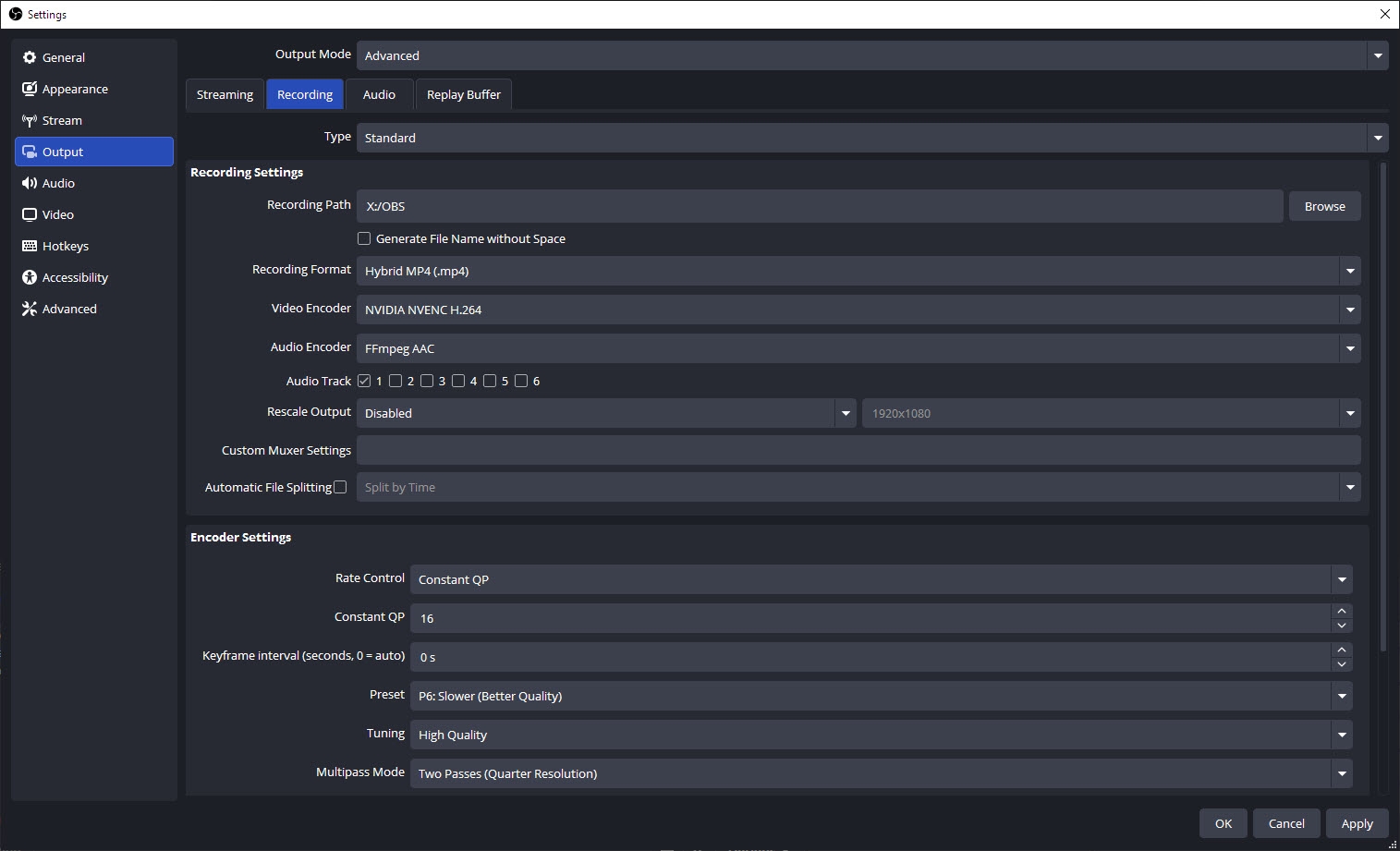
- Use Hybrid MP4. Settings › Output › Recording Format. It has been the default for new profiles since OBS 32.0, and it stays playable after a crash or a power cut, which plain MP4 doesn't. It is also the format that supports chapter markers.
- Encode on the graphics card. Switch Output Mode to Advanced and, on the Recording tab, pick the hardware encoder (NVIDIA NVENC, AMD or Intel QuickSync) instead of x264, so the recording doesn't compete with NinjaTrader for the processor. Rate Control on Constant QP (CQP) with a value around 20 to 23 keeps small text sharp, and charts that barely move cost almost nothing at that setting.
- Shorten the keyframe interval. Set 1 or 2 seconds instead of automatic. Most players jump between keyframes when you drag the playhead, and a short interval makes it land where you click.
- Leave the frame rate at 30. Settings › Video › Common FPS Values. Charts and a DOM (depth of market ladder) don't need 60.
- Decide on audio. Keep desktop audio if your platform alerts make sounds, since hearing when an alert fired is part of the record. A microphone on a separate track lets you talk through decisions while you trade.
- Bind a chapter hotkey. Settings › Hotkeys › Add Chapter Marker. Each press drops a numbered marker (Unnamed 1, Unnamed 2 and so on) into the file at that second.
OBS hotkeys are global, and the key press still reaches the window in focus. If that window is a NinjaTrader chart and the same key is bound to an order action in NinjaTrader's hot keys, pressing it for a marker also sends the order. Use a combination with two modifier keys that appears nowhere in your NinjaTrader list, and check it against the order entry and hotkeys post before the first live session.
Chapters are written when the recording stops cleanly. After a crash the video survives and the markers don't.
Camtasia
Camtasia records to its own TREC format and captures at a variable frame rate, which suits a screen where most pixels stay still. The settings live in the Recorder under Tools › Preferences: the capture frame rate on the Inputs tab (30 is enough) and the recording shortcuts, which need the same check against NinjaTrader's hot keys. Ctrl+M adds a marker while recording on Windows, and the markers show on the timeline once the TREC file is opened in the editor.
The trade-off against OBS is cost and weight. Camtasia is a paid editor, so if the only goal is to watch sessions back, most of what you pay for goes unused. Where it earns its price is clipping: cutting one trade out of a session for the journal or for a video takes a minute once the file is open.
How big the files get
Screen recordings compress well because most of the frame doesn't change from one second to the next. Size follows the average bitrate, and the arithmetic is fixed: every megabit per second (Mbps) is 0.45 GB an hour.
| Average bitrate | Per hour | 6.5-hour session | 20 sessions |
|---|---|---|---|
| 2 Mbps | 0.9 GB | 5.9 GB | 117 GB |
| 5 Mbps | 2.25 GB | 14.6 GB | 293 GB |
| 10 Mbps | 4.5 GB | 29.3 GB | 585 GB |
Six and a half hours is the length of US regular trading hours. With CQP the bitrate isn't fixed: it climbs when the screen is busy (fast tick charts, a flickering DOM, a Bookmap heatmap) and drops when it isn't, so the reliable way to find your own number is to record one full session and divide the file size by the hours. Then set a retention rule before the drive fills. A workable one: keep the full file until the session has been reviewed and journaled, keep short clips of the trades worth studying, and delete the rest.
Finding the trade later
Markers are the quick route. Press the hotkey at every entry and every exit, and the player's chapter list turns into a trade list. VLC, MPC-BE and DaVinci Resolve all read chapters from a Hybrid MP4.
Without markers, use the clock. OBS names each file after the date and time the recording started, and NinjaTrader's Executions tab lists the time of every fill. The position in the video is the fill time minus the start time: a file that started at 08:57:12 and an entry at 10:41:30 put the trade 1 hour, 44 minutes and 18 seconds in. Both clocks have to be in the same time zone. NinjaTrader displays times in the zone set under Tools › Settings › General (Options in older builds), which doesn't have to match the computer's, and a trader in Europe with NinjaTrader on Eastern time is six hours out. Keeping the Windows clock or the chart's time axis inside the captured area gives a check on screen.
Before sharing a clip, crop or blur the account name and balance. The Control Center and Chart Trader show both.
My own sessions are recorded in OBS most days, and in Camtasia only now and then. The review after the close is where MAE and MFE get read off the chart and typed into the journal. It is the slow path, and it's the reason those two columns can be trusted.
Educational content, not investment advice. Futures trading involves substantial risk of loss. Examples are for illustration only. Read the full Risk Disclosure.