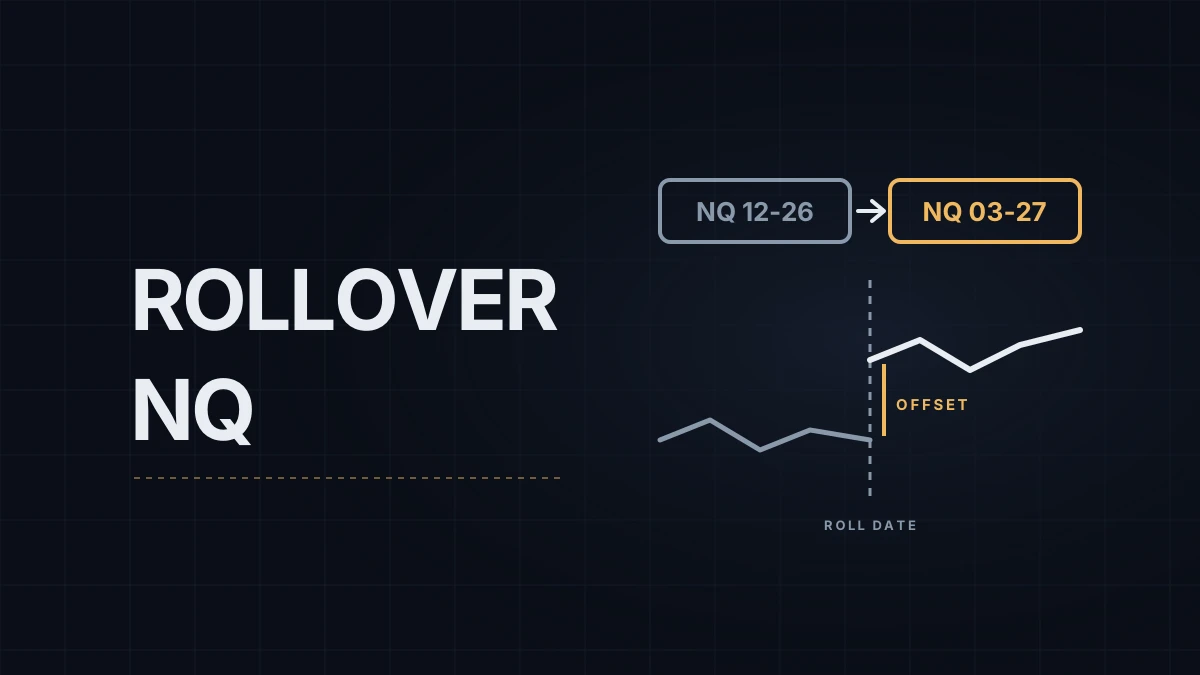
The December 2026 NQ contract, NQ 12-26 in NinjaTrader (or NQ DEC26, depending on the symbology display setting), expires on Friday, December 18. CME's customary roll date for US equity index futures is the Monday before the third Friday of the expiration month, which this quarter is December 14. From then on most of the volume trades in March, NQ 03-27. The quarterly cycle itself and the month codes are covered in the NQ rollover and contract months post; this one is about what to change in NinjaTrader 8, the platform set up in the chart setup guide.
1. Check NinjaTrader's rollover table
Open the Instruments window from the Tools menu, find NQ and edit it. The Contract months section lists each contract month with a rollover date and an offset. NinjaTrader uses this table to decide which month counts as current and where to splice one contract's history onto the next. Its date doesn't have to match CME's customary roll date, so look before you assume. A chart on the continuous NQ ##-## symbol switches on that date by itself, and since version 8.1.9 NinjaTrader warns you if you roll a contract before its scheduled date.
The offset is the price difference between the expiring contract and the next one at the roll. On NQ the next contract usually trades above the front month, because the futures price carries financing cost minus dividends until expiration, as the fair value and basis post explains. That difference is what the merge policy below either applies or ignores.
2. Choose a merge policy
The setting lives under Tools › Settings › Market data › Global merge policy (Options before version 8.1.5) and applies to every futures chart unless an instrument overrides it. The Strategy Analyzer follows it too.
| Merge policy | What the chart shows | Good for | Watch out for |
|---|---|---|---|
| MergeBackAdjusted (the default) | Older contracts shifted by the offsets, so the chart runs without a jump at each roll | Indicators that need long, smooth history, such as moving averages | Historical prices no longer equal prices that traded |
| MergeNonBackAdjusted | Older contracts spliced at the rollover date with no adjustment | Seeing the prices that traded | A gap at each roll, the size of the spread between months |
| DoNotMerge | Only the selected contract's own data | Studying one contract as it traded | A new contract's chart can be short on history |
After changing the policy, reload the chart's historical data so the new rule is applied.
What happens to your levels. This is the part that catches level traders. Last week's high on NQ 12-26 is a December price. In March terms it sits higher by roughly the spread between the two months. An indicator that calculates levels from history, such as a session levels tool (the session levels post covers the options), recalculates them on the new contract, and with back-adjusted history the old days are shifted to match. A line you drew by hand stays exactly where you put it, which after the switch is the wrong price. Redraw manual levels from the March chart, or shift each one by the offset. Volume profiles, set up as in the volume profile post, behave the same way: a profile on the new contract is built from its own data, or from adjusted history if it reaches back past the roll.
3. Roll the windows, then check what didn't move
When NinjaTrader's own rollover date arrives, it prompts you to roll. Accepting the prompt, or running the rollover under Tools › Database Management, moves every instrument list and window on all open workspaces to the next contract at once. NinjaScript strategies are not rolled, and the change only sticks once you save the workspaces. To move only some windows, change the contract in each one: charts (with Chart Trader inside them), the SuperDOM, Time and Sales and the Market Analyzer each have their own instrument, and windows that share an instrument link color follow one another, which is the main reason to set up the linking described in the workspaces and instrument linking post.
Then check your alerts. One attached to a drawn line stays at that line's December price, and alerts saved per contract, like those in the price alerts post, start empty on the March chart. When the prompt comes up, I let it move my instrument lists and charts, then mark the day's levels from the March contract's own data.
4. Anything still open on the old contract
Working orders on NQ 12-26 stay on NQ 12-26. Day traders who finish flat have nothing to move, and most prop firms require that anyway. If you do hold a position across the switch, the Positions tab in the Control Center has a Roll Position command that exits the current month and enters the same position in the next one, using market orders; the Control Center guide shows where it sits. That is two market orders, so two crossings of the spread and two commissions.
Leaving a position on the old contract until the end isn't free either. Volume drains out of December after the roll, and NQ that is still open at expiration is settled in cash against a special opening price on the morning of December 18, as the NQ expiration post explains. Prop firms often stop allowing trades in the expiring month before that, so check the firm's notice if you trade one.
Educational content, not investment advice. Futures trading involves substantial risk of loss. Examples are for illustration only. Read the full Risk Disclosure.