Price Alerts on the NinjaTrader Chart: Setting Up WotT Tripwire
A few prices need a sound during the session, and NinjaTrader's own alert takes a dialog for each one. WotT Tripwire sets one with a drag on any NinjaTrader 8 chart: installing it, what the lines and labels mean, when it fires, the settings that matter, three setups, and what it doesn't do.
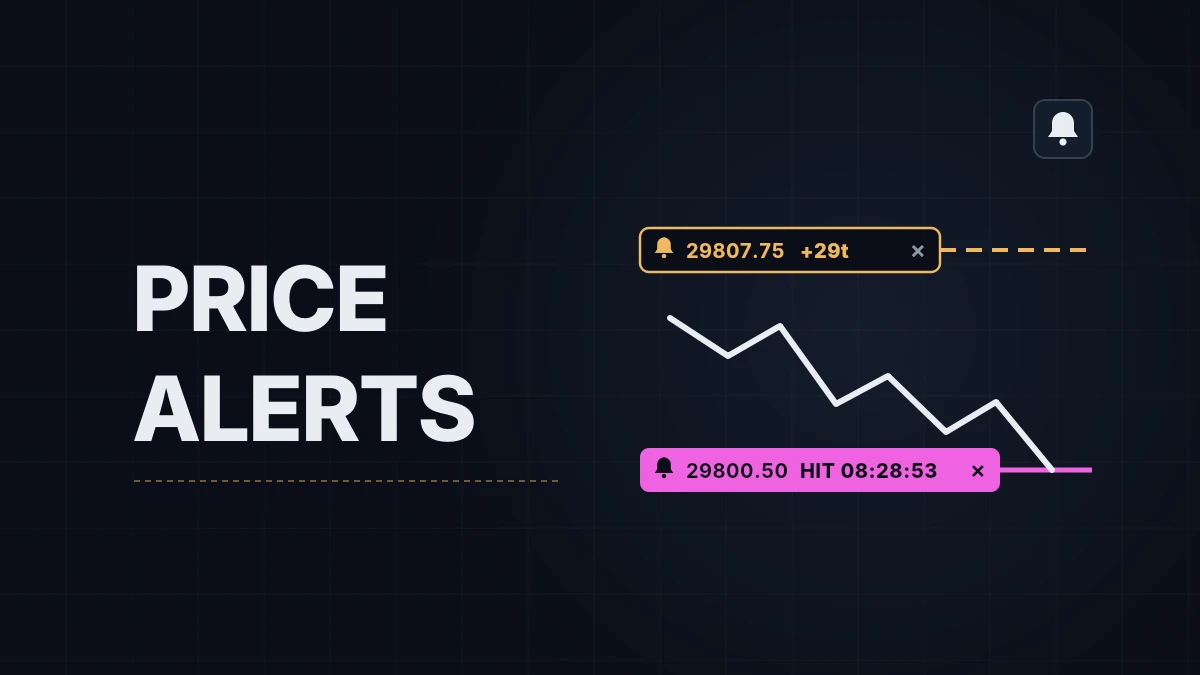
A level from the plan, the far side of the range, the price where the stop would move: a few prices need a sound during the session. NinjaTrader's own price alert does the job, but each one is a dialog with a condition, an action and a rearm type, and a line with an alert attached doesn't re-arm when you move it. How that dialog works, and where its limits are, is in drawing tools and alerts. WotT Tripwire is the short way: drag a bell onto the price, hear a sound when price gets there, move or remove the alert with the mouse. It's a free indicator from this site, on the tool page. If NinjaTrader 8 itself is new, chart setup comes first.
Installing it
Download the zip from the tool page, then in NinjaTrader 8 open Tools › Import › NinjaScript Add-On and pick the file; don't unzip it first. The indicator then goes on a chart like any other: Indicators › WotT Tripwire › OK. It needs NinjaTrader 8.1 or later on Windows and a chart with a live data connection, because alerts are checked on incoming trades. It makes no internet connection of its own and needs no account. The import itself, step by step, is in importing indicators and add-ons.
After the import a small dark square with a bell appears in the top-right corner of the price panel. That is the whole interface. There is nothing to configure before the first alert; the defaults are the ones the tool was built and traded with.
Setting an alert
Press the bell and drag. A dashed ghost line follows the cursor across the panel, snapping to whole ticks, with a label beside the cursor such as 29807.75 +7t: the price, and the distance from the last trade in ticks. Release over the price panel and the alert is set. Release over the bell or outside the panel, or press Esc, and nothing happens. The chart doesn't scroll while you drag.
The second way is Alt+click. Hold Alt and left-click anywhere on the price panel, and the alert goes exactly where you clicked. Both Alt keys work, AltGr included. It is on by default and can be switched off.
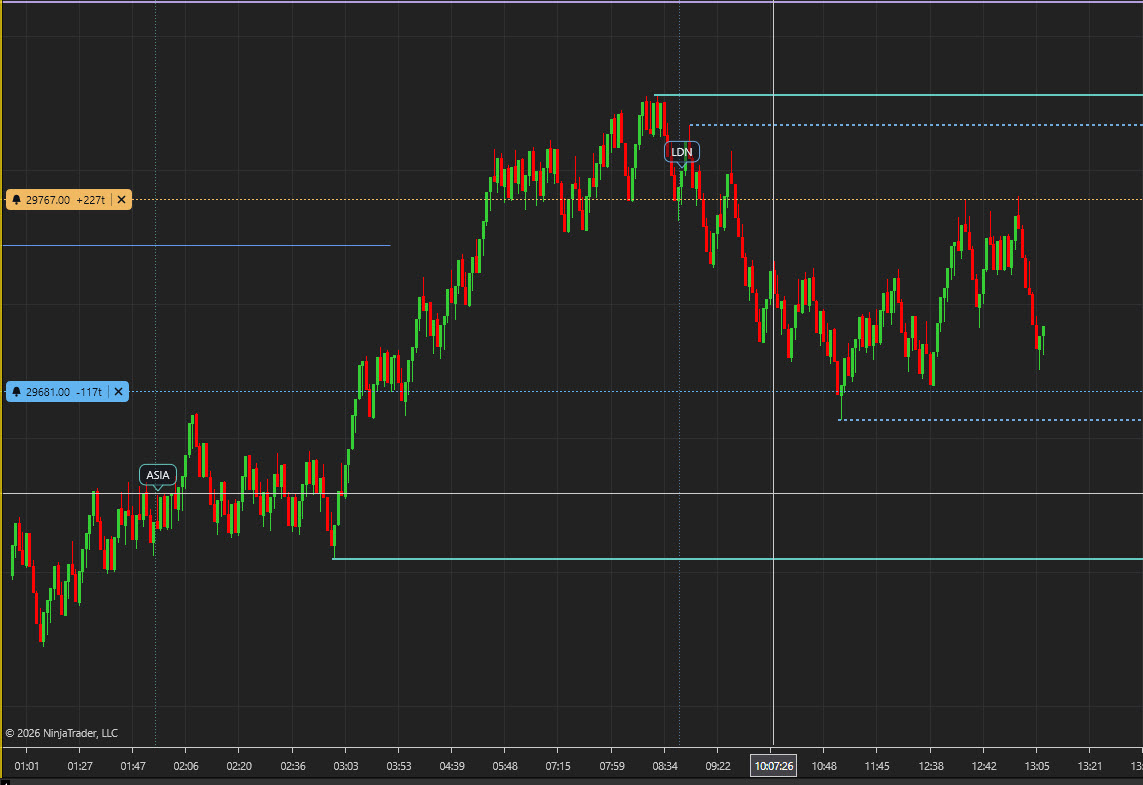
An armed alert is a dashed line across the chart with a label at the left edge: a small bell, the price, the distance in ticks with its sign, and a × button. An alert above the current price is amber and waits for a rise; one below is blue and waits for a fall. The distance updates with every trade, so +7t becomes +3t as price approaches. On a light chart background the lines switch to darker shades of the same colours automatically.
When a trade touches or crosses the level, the "WotT Ping" sounds: a short double ping generated by the indicator itself, chosen so it sounds like nothing else in NinjaTrader. The line turns solid and magenta and the label shows 29800.50 HIT 08:28:53. After 30 seconds the fired line disappears. Set that to 0 and it stays until you deal with it.
Moving, removing and re-arming all happen on the label. Drag the label to move the alert; the direction is worked out again from the new price. Click × to remove it, no confirmation. Click the label of a fired alert to arm it again on the same price. Only the label reacts to the mouse, never the line, so a horizontal line, a drawing or a Chart Trader order sitting at the same price stays clickable. Nothing opens at any point.
A level outside the visible price range keeps its label, pinned to the top edge as ▲ 29896.00 +160t or to the bottom edge with ▼. It still fires, still has ×, and can be dragged back into view. When several labels would overlap, they sit side by side.
When it fires
Every trade is checked. An alert above price fires on the first trade at or above the level, an alert below price on the first trade at or below it, so a gap straight through the level counts as a hit. An alert placed on the price that is trading right now waits until price moves away by at least a tick, then fires when it comes back; otherwise it would fire the moment you let go.
Alerts belong to the contract, not the chart. Every chart of MNQ DEC26 shows the same lines, a change on one appears on the others at once, and a hit sounds once however many charts are open. Each alert is one line in a plain text file under Documents\NinjaTrader 8\WotT\Tripwire, rewritten after every change, so alerts come back after F5, after closing the chart and after restarting NinjaTrader. A new contract after the roll starts with an empty list; the old contract's file stays on disk.
The indicator keeps running while its chart is in a background tab or NinjaTrader is minimized. It does need NinjaTrader open and connected to data. This is not a server-side alert; nothing fires while the platform is closed, and a missed or late alert is possible when the connection drops.
The settings that matter
Right-click the chart › Indicators › WotT Tripwire. Three groups: Alert, Appearance and About.
| Setting | What it does | The trade-off |
|---|---|---|
Alert sound, WotT Ping by default | The built-in double ping, written once to Documents\NinjaTrader 8\sounds\WotTTripwire-Ping.wav. Or the name of any WAV file in NinjaTrader's sounds folder, or a full path | The built-in sound is unlike anything else in NinjaTrader, and unlike the Event Monitor's chime, so your ear knows it's price. Your own file can be louder or longer, and can also be the sound you already use for something else |
Remove fired line after (sec), 30 | How long a fired line stays on the chart, 0–3600. 0 keeps it until you click it to re-arm or × to remove | 30 seconds leaves a clean chart and no second chance to re-arm; 0 keeps every hit in view for a retest and needs a click to tidy up. The timer belongs to the chart, the fired line is shared: with two charts of one contract and different values, the shorter one wins |
Alt+Click quick alert, on | Alt + left-click on the price panel sets an alert under the cursor | The fastest way to set a level; off if Alt+click already means something else on your chart |
Also log to Alerts Log, off | Adds every hit to NinjaTrader's Alerts Log window, e.g. MNQ DEC26: Tripwire 29800.50 hit (down), last 29800.50 | A record of every hit with its time, which the chart doesn't keep after the line is gone; one more window if you don't use the log |
Bell corner, TopRight | Which corner of the price panel the bell sits in: TopRight, TopLeft, BottomRight or BottomLeft | Top-right moves aside for NinjaTrader's "scroll to latest bar" button; top-left shares the corner with the chart's own labels; bottom-left stays above the copyright line |
Label side, Left | Left puts the labels at the left edge of the panel, Right next to the price axis | Left keeps the labels clear of the latest candles and of Chart Trader's order markers; Right puts the price where you already read prices |
Color: level above price, Color: level below price, Color: fired | Line and label colours for an alert waiting for a rise (amber), waiting for a fall (blue), and after the hit (magenta) | Personal; the defaults avoid green and red, which on most charts already mean profit and loss |
Line width, 1 | Width of the alert lines in pixels, 1–5. A fired line is drawn one pixel thicker | Thicker lines are easier to see on a dense chart and easier to confuse with drawn levels |
The About group shows the installed version and the address of the tool page. There is no setting for the trigger itself: every alert fires on the first trade at or beyond its level.
Three setups
A trader who marks levels before the session has them on the chart already, drawn by hand or by an indicator, and wants a sound at each one without a dialog each time. Alt+click on every level from the plan, three or five of them, takes a few seconds. Remove fired line after (sec) at 0 keeps each hit on the chart in magenta, so a level that has been tested once can be re-armed with one click for the retest, and Also log to Alerts Log on leaves the times of the hits for the session review. The alerts are saved per contract, so the set placed in the morning is still there on every chart of that contract after a restart.
A trader in a position wants two prices: the far side of the range, where the trade would be re-evaluated, and the price where the stop would move. Drag the bell to each. The distance in the label, +14t, -6t, shows how far price is from each one without reading the axis, and the default 30-second removal keeps the chart clean once a level has sounded. Labels on the left stay clear of Chart Trader's order markers on the right. The indicator doesn't move the stop; the sound says it's time to decide.
A trader trying it out, or learning the sound, wants Market Replay. Under a Playback connection the indicator keeps a separate list of alerts, in a file with a _playback suffix, so a test never leaves a stray alert on the live chart. Set an alert a few ticks from price, let it fire, hear the volume, watch the line turn magenta and come back after 30 seconds. How to set up replay itself is in Market Replay.
What it doesn't do
It draws a line and plays a sound, nothing more. It never places, moves or cancels an order, and it has no connection to ATM strategies. Where the stop goes is still your decision and your click.
It doesn't reach your phone. The sound plays on the PC that runs NinjaTrader, and the optional line goes to NinjaTrader's Alerts Log, which is where alerts to phone picks up with NinjaTrader's own Share actions; version 1.0 of the indicator has no Share action of its own. It also works only while NinjaTrader is open and connected to data, like every alert evaluated on your PC.
The line itself doesn't react to the mouse; only the label does. That is deliberate, so that drawings and orders at the same price keep working, but it means a click on the line does nothing.
Alerts are horizontal, one price each. There are no alerts on trendlines, rays or channels, no alert on a bar closing beyond the level, and no sound that repeats until acknowledged. Its levels are not available to the Market Analyzer or the Strategy Builder, and a level on MNQ is not mirrored on NQ.
I built it for my own range chart. The levels I watch on MNQ are drawn before the session, and until mid-October 2026 the alert for each of them was a dialog I mostly didn't open. Now it's a drag from the corner, or Alt and a click, and the chart tells me when price is there.
Educational content, not investment advice. Futures trading involves substantial risk of loss. Examples are for illustration only. Read the full Risk Disclosure.